AUBO Sim Virtual Installation Guide
This document describes how to use ARCS software in a virtual machine. There are two ways:
- Download and install aubo_sim virtual machine. ARCS software has been installed in aubo_sim virtual machine.
- Install ARCS software in Ubuntu system.
1. AUBO_Sim virtual machine download and installation instructions
1.1 File download
1.2 Install VMware virtual machine
Note: VMware Workstation version needs to run on 16 Pro and above.
VMwareWorkstation installation tutorial
1.3 Install ARCS virtual machine image
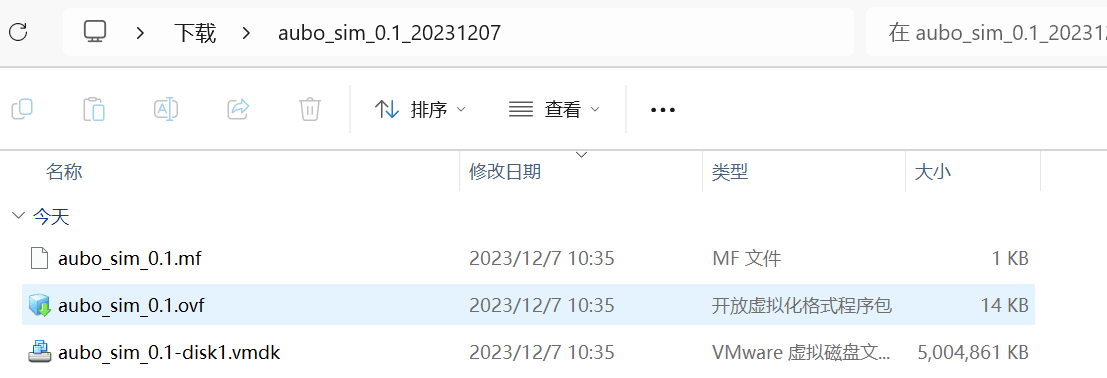
Unzip the downloaded ARCS virtual machine image file.
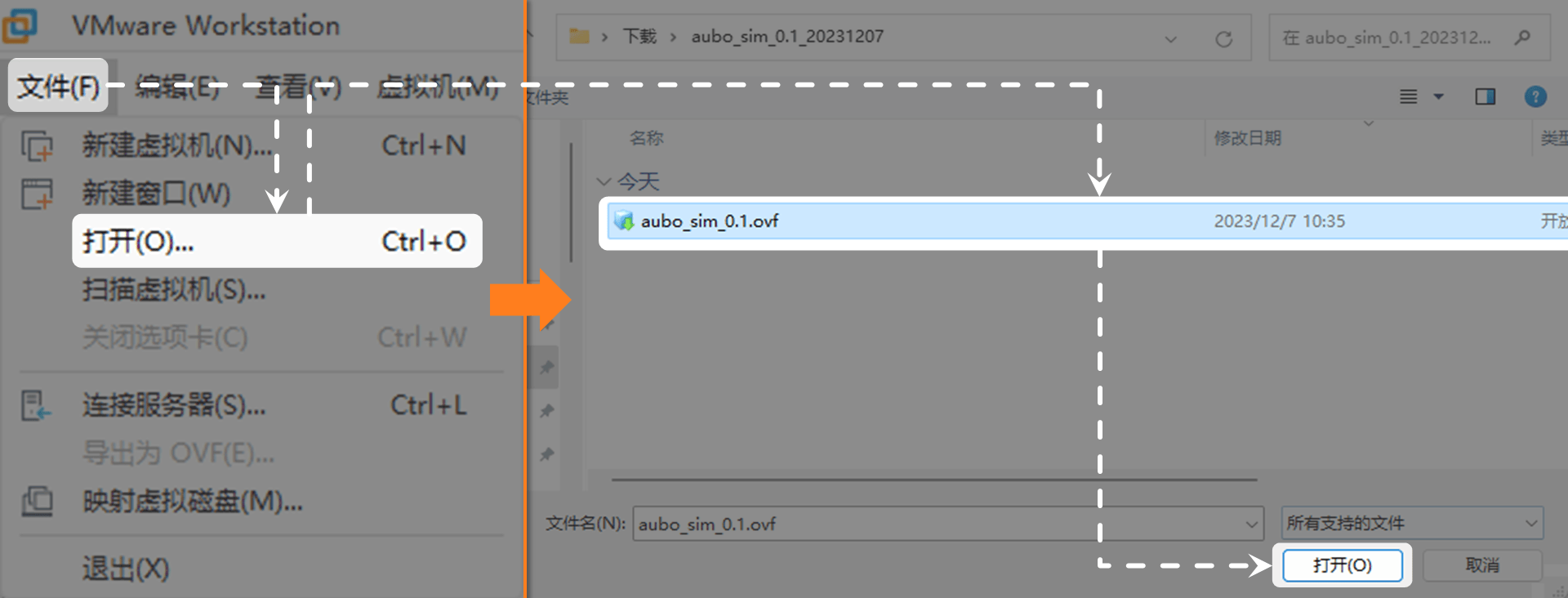
Open VMware Workstation, click "file > open" in the upper left corner, select the file "aubo_sim_0.1.ovf", and click open.
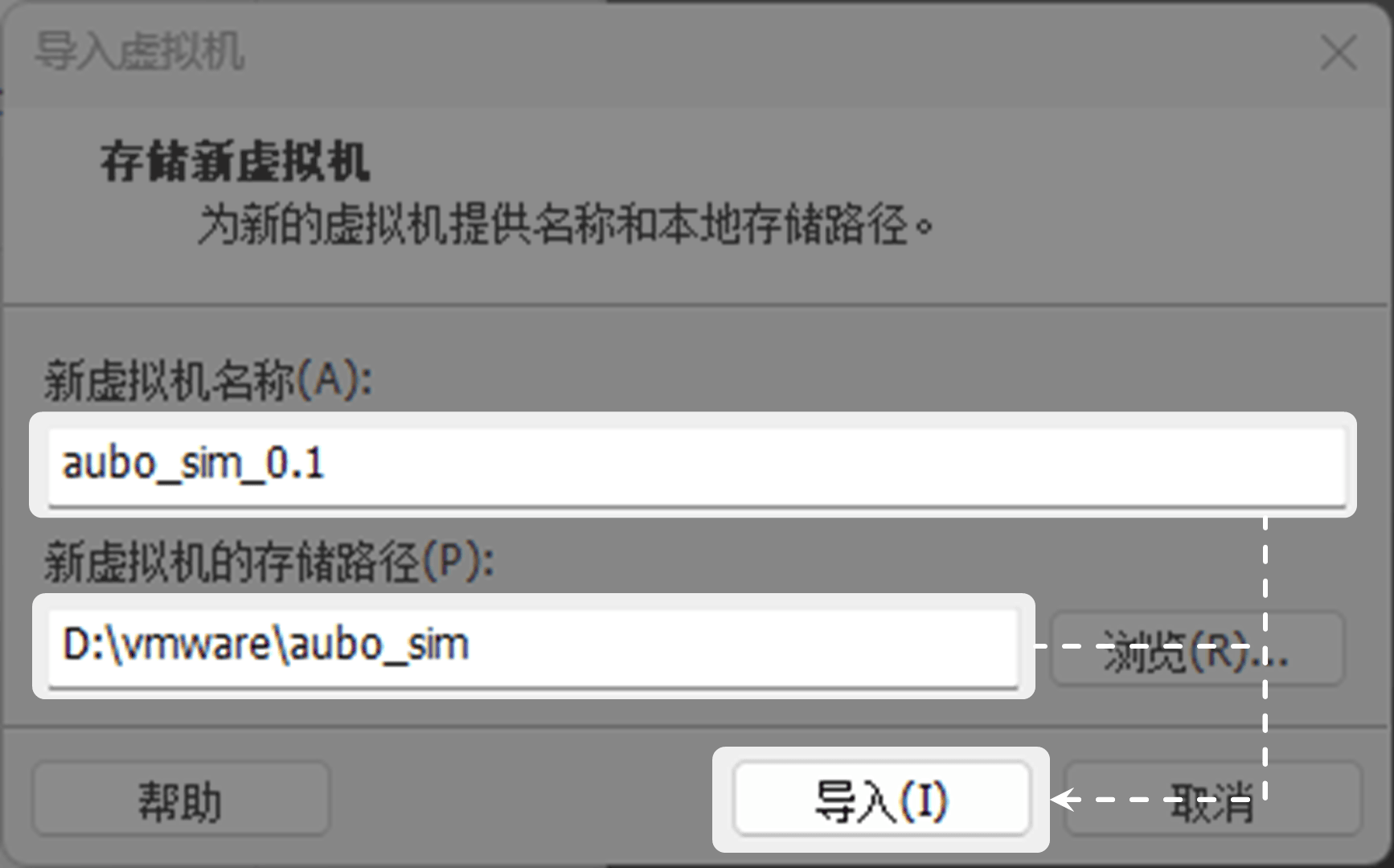
Set the storage path of the new virtual machine and click [Import].
Note: If the pop-up prompts "Import failed", click [Retry].
After
aubo_simvirtual machine is successfully imported, click [Open Virtual Machine].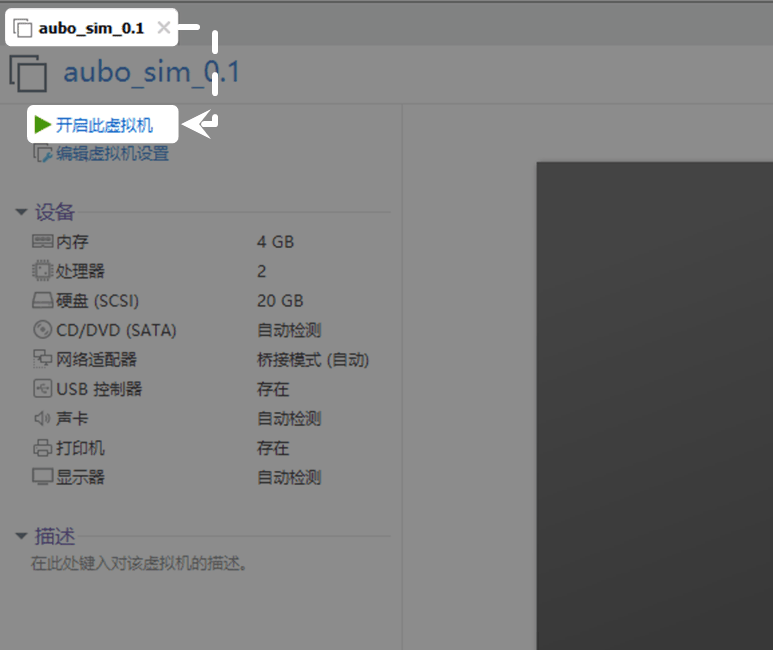
After successfully starting
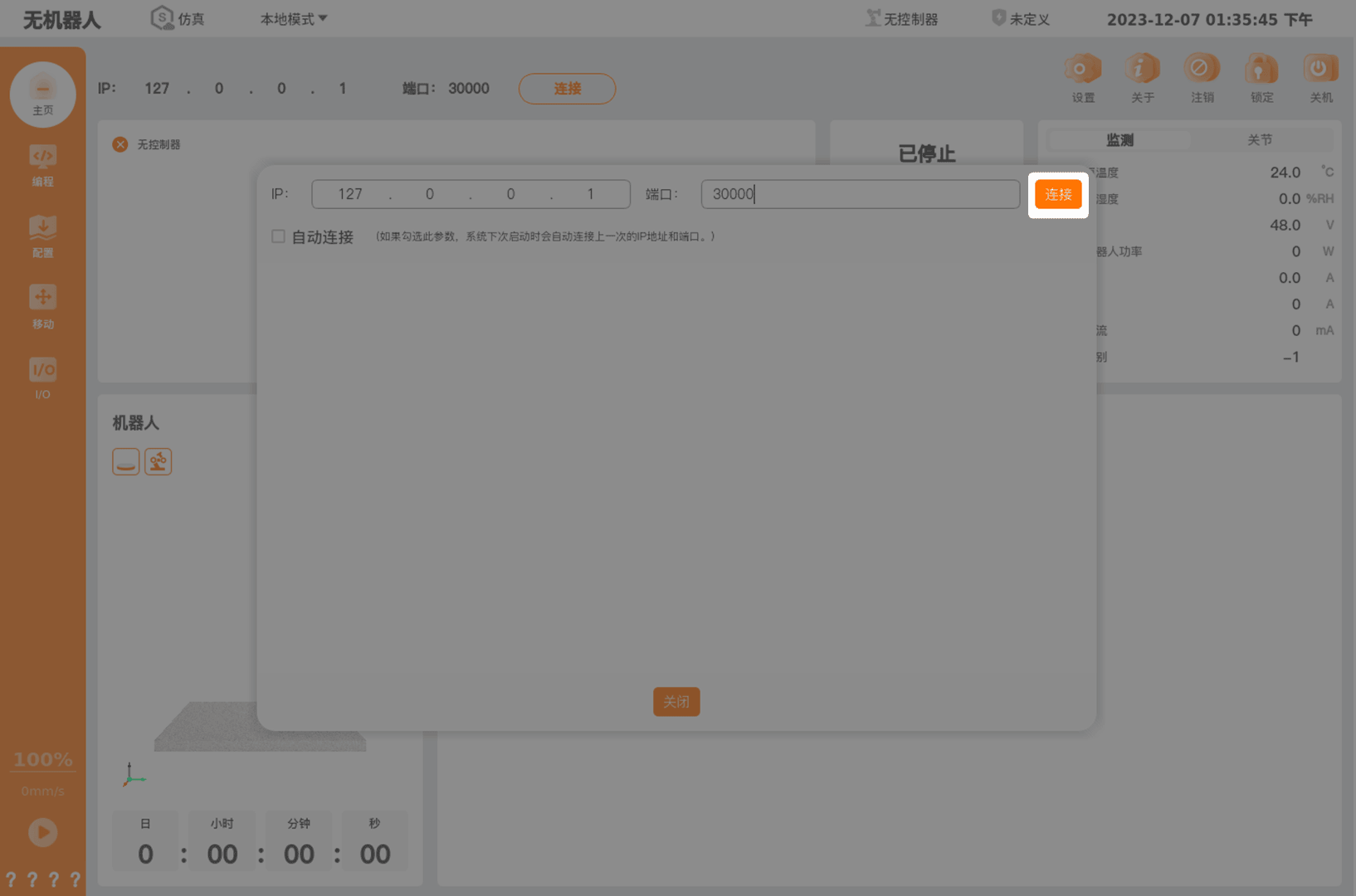
aubo_sim_0.1, enter the ARCS software and click [Connect] to start using ARCS.Note:
- The password of system administrator (root) is aubo.
- The security password, operation mode password and administrator password in ARCS software are q by default.
2. Install ARCS software in Ubuntu
Note: Install ARCS software under the root user of Ubuntu.
Download arcs software installation package. The download link is https://download.aubo-robotics.cn/arcs/。
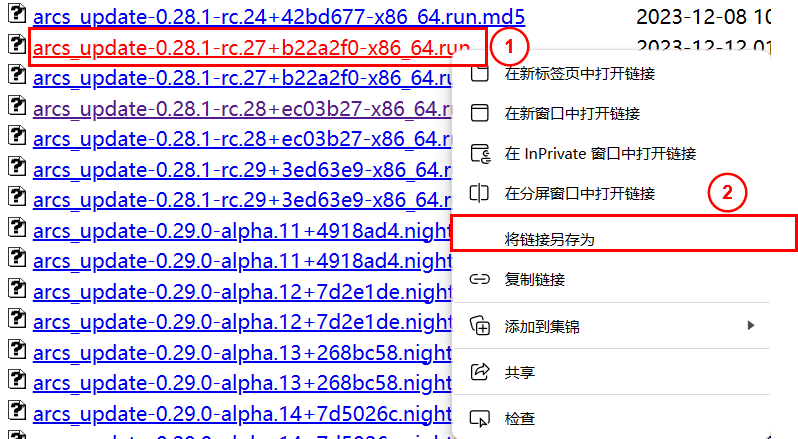
As shown in the figure below, point to the .run installation package, right-click it, click Save Link As, and the installation package will be downloaded automatically.
Log in to root user of Ubuntu.
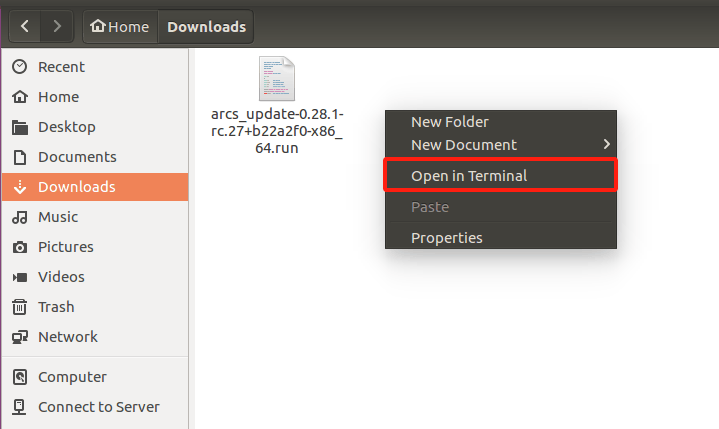
Copy the .run installation package file to ubuntu, and right-click to open in terminal.
Execute the installation command.
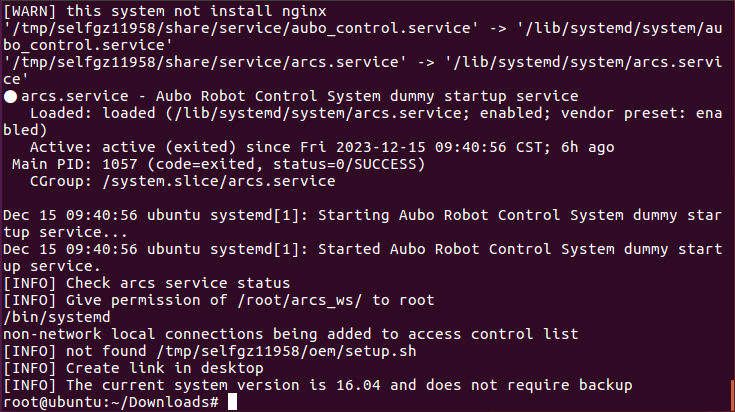
bash./arcs_update-0.28.1-rc.27+b22a2f0-x86_64.run installAfter successful installation, as shown in the figure below.
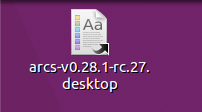
.desktop icon file is generated on the desktop.
Under the directory of /root/arcs_ws/config/, modify the configuration file of aubo_control.conf, as shown in the following figure.

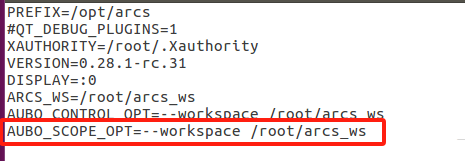
In the /etc/default/ directory, open and modify the arcs file, as shown in the following figure.
- Open the terminal and enter the command to start aubo scope and aubo control.
systemctl restart aubo_scope
systemctl restart aubo_control- Click [Connect].
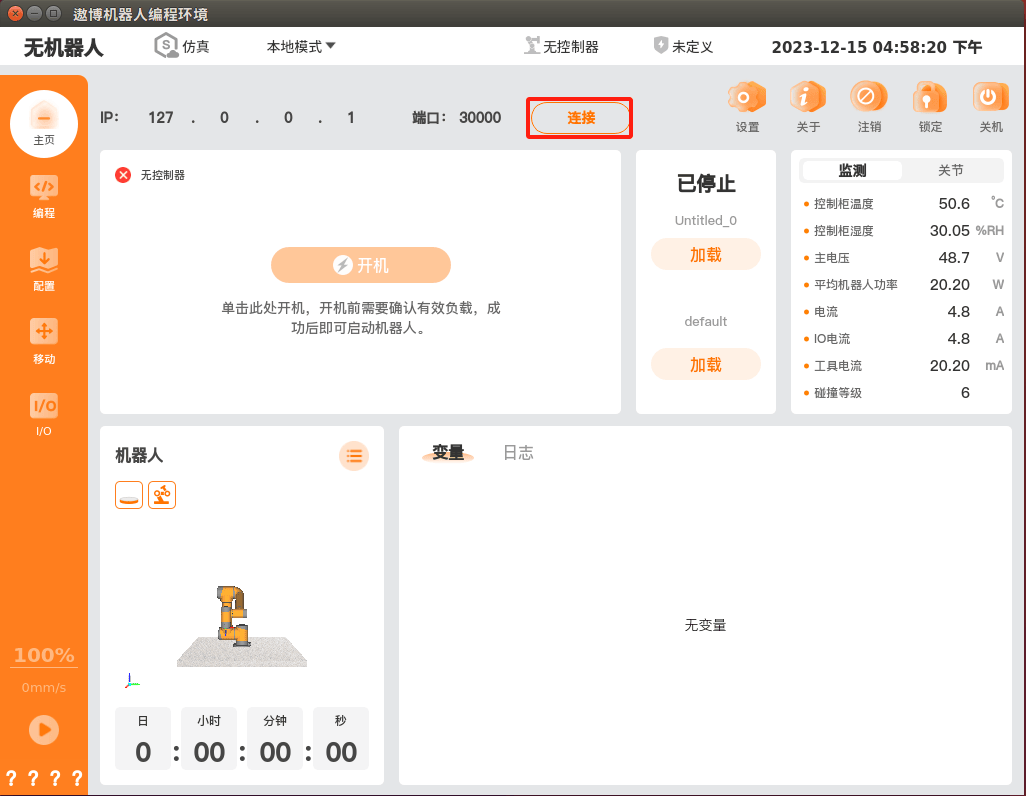
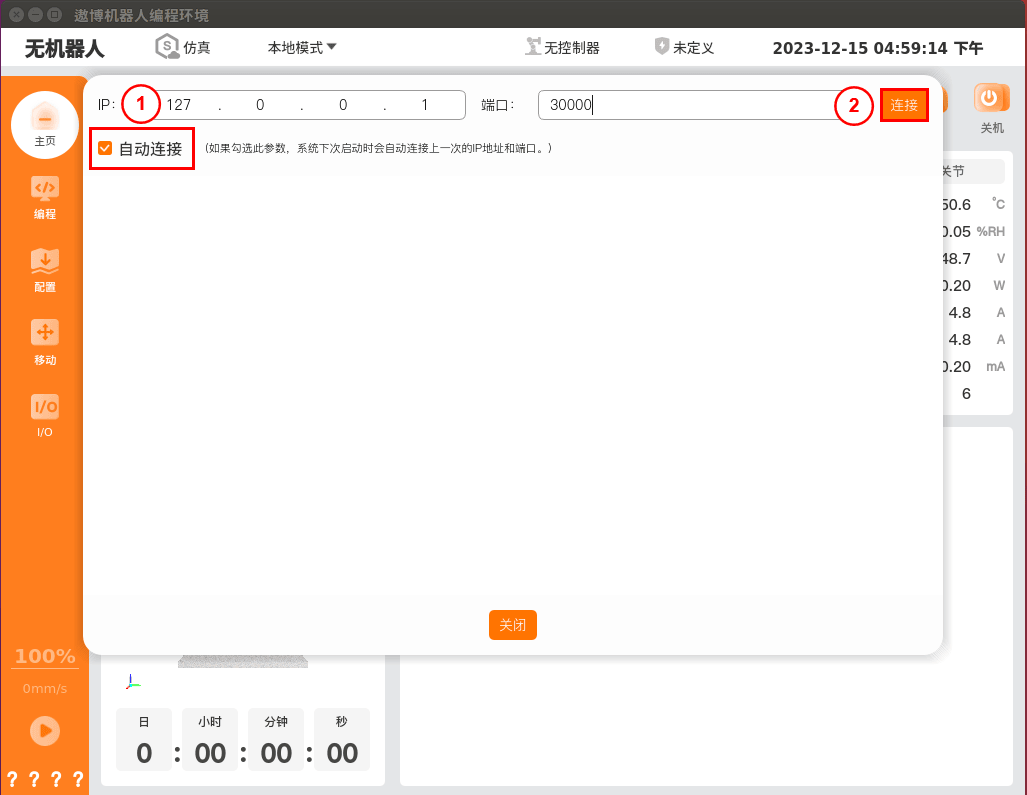
- Check [Auto Connect] and click [Connect].
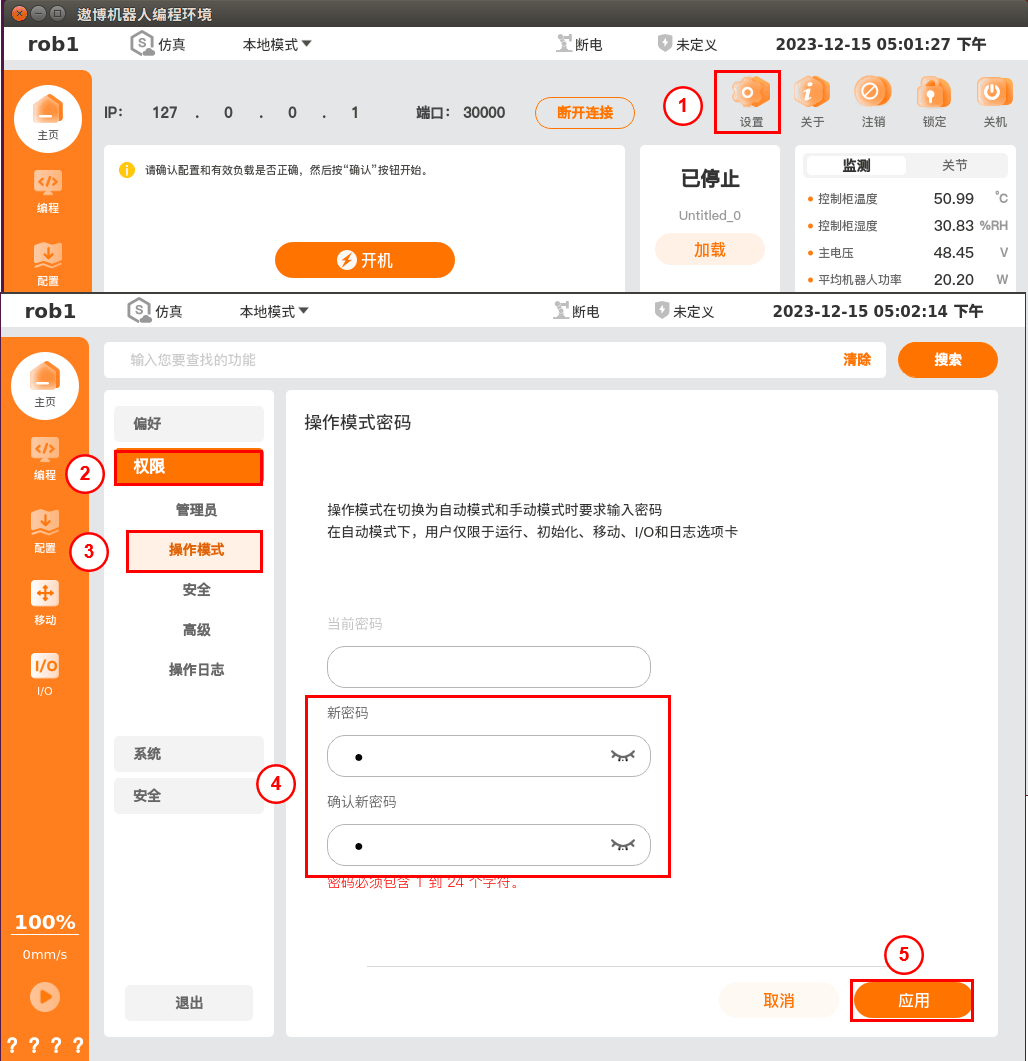
- Set the password for the operation mode, and click [Apply].
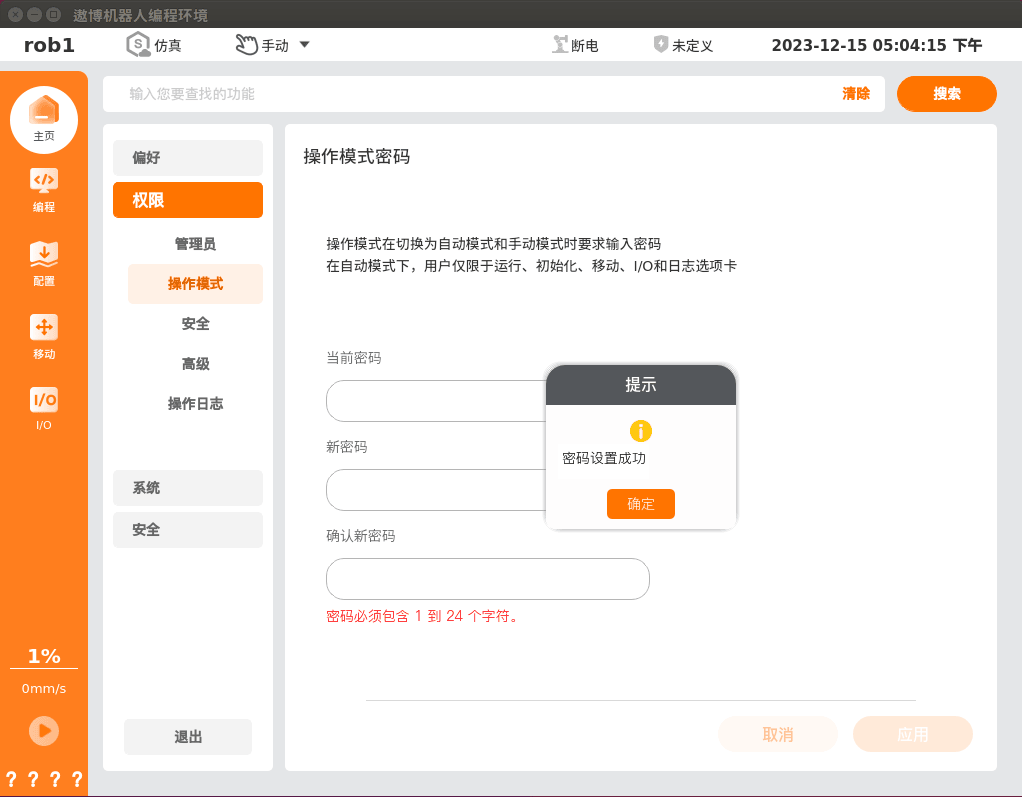
After successful setting, a pop-up window will prompt [Password set successfully], and the operation mode in the interface will change to [Manual].
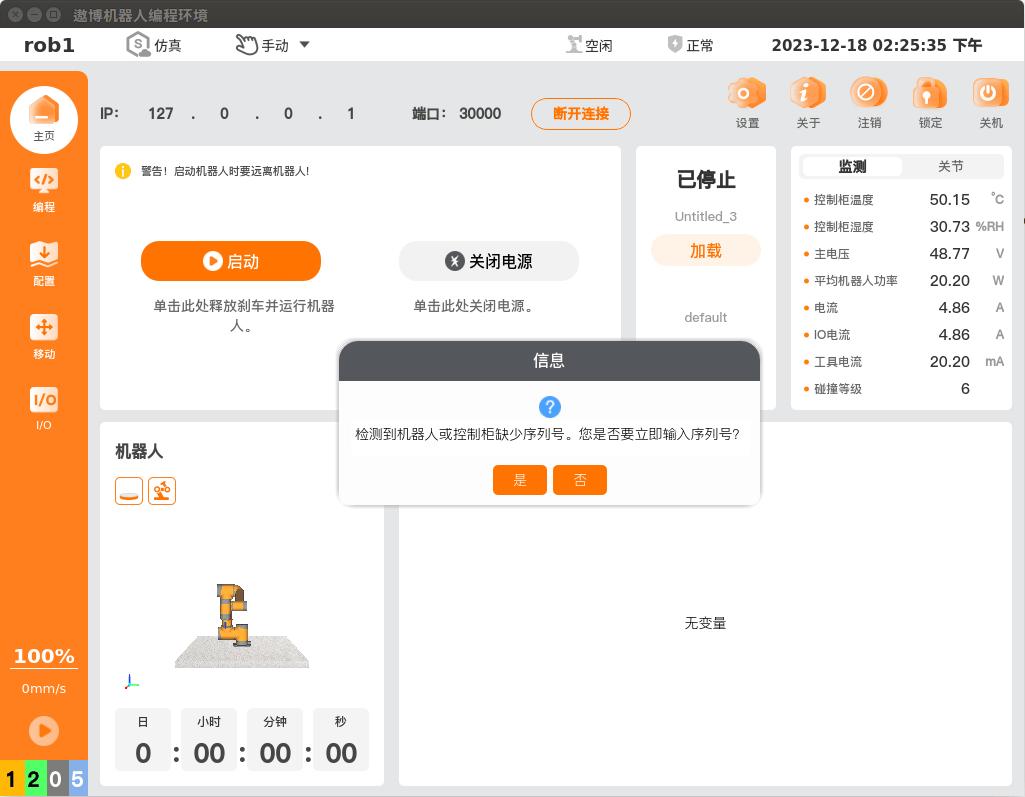
Click [Start], set the load, and then click [Continue]. At this point, a pop-up window will prompt whether to enter the serial number, and click [No]. Then, click [Start] to complete the power-on of the robot.
When the virtual machine network is connected normally, but the software upgrade interface cannot refresh the page, as shown in the following figure.
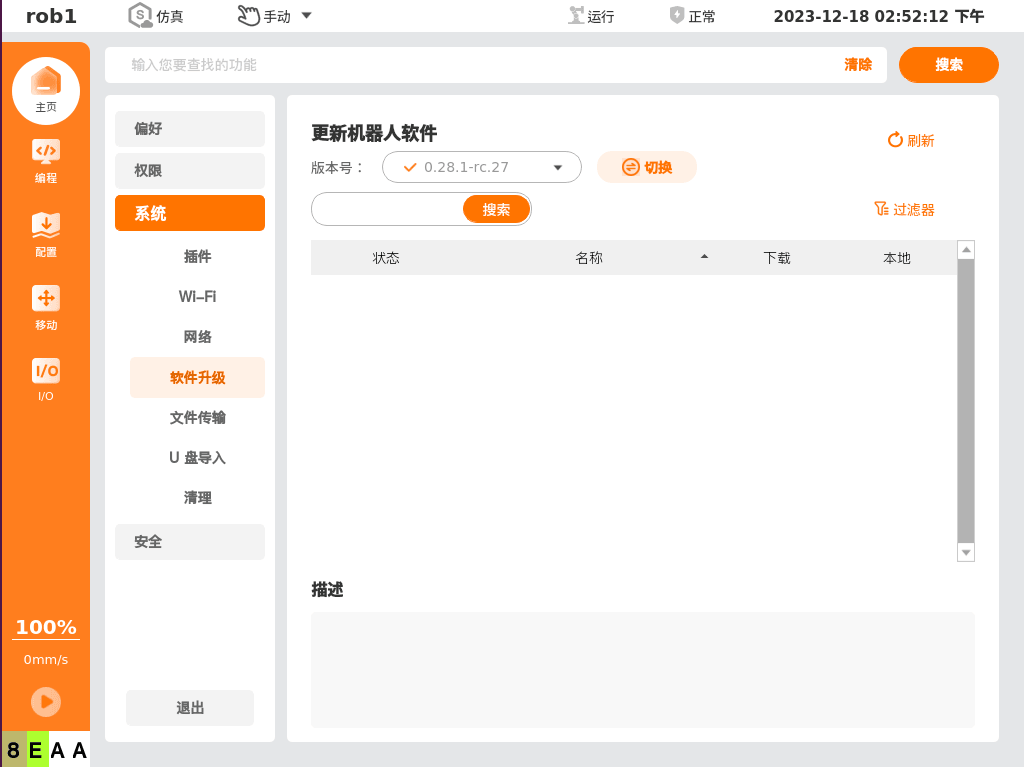
Install the corresponding version of OpenSSL. The operation steps are as follows:
Download the compressed package.
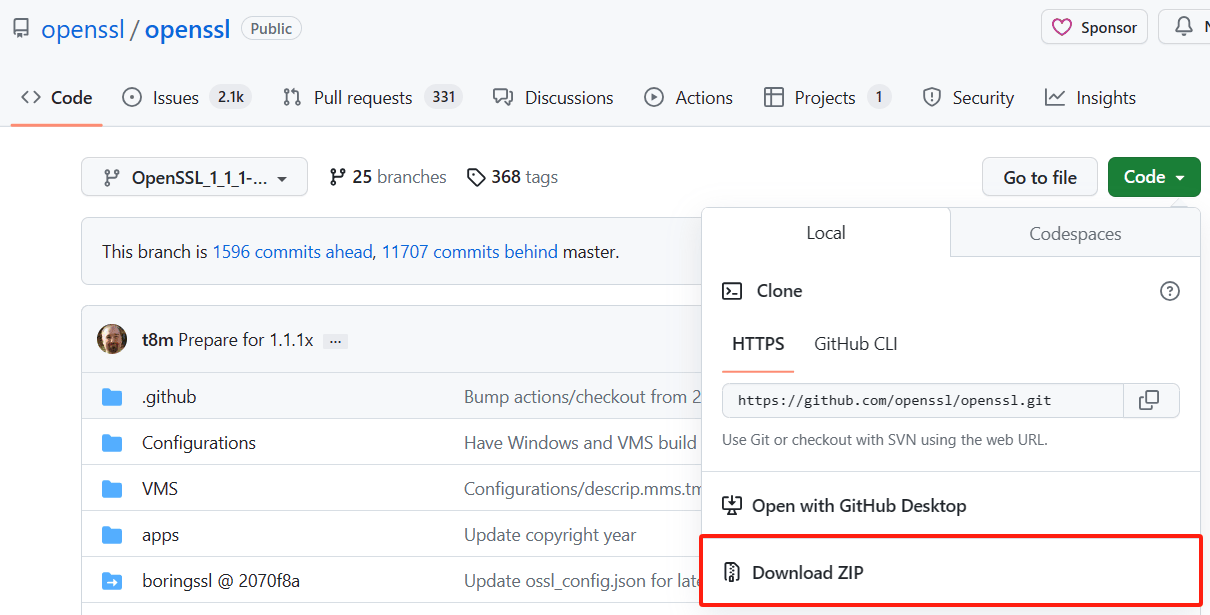
Copy the compressed package to the virtual machine, decompress it, and go to its directory.
# Install
./config
make
sudo make install
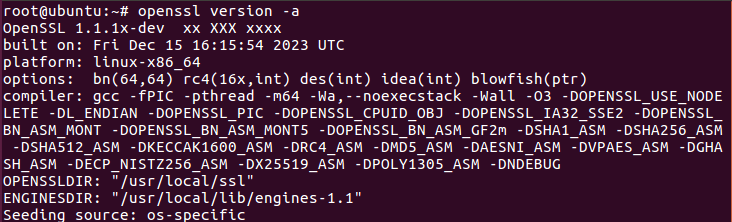
# Replace new version link ln -s /usr/local/bin/openssl /usr/bin/openssl ln -s /usr/local/lib/libcrypto.so.1.1 /usr/lib/libcrypto.so.1.1 ln -s /usr/local/lib/libssl.so.1.1 /usr/lib/libssl.so.1.1Check the upgrade results after the installation is completed.
# Check the upgrade results
openssl version -a