Download and Installation
Prerequisites
Before installing the AUBO SDK, please ensure the runtime environment is correctly configured. For more information on environment configuration, please refer to AUBO SDK Running Requirements.
SDK
Download link for the SDK: Index of /sdk (aubo-robotics.cn).
The SDK in this link includes C++ header files and C++ SDK library files, which can be used for secondary development of the C++ SDK.
pyaubo_sdk library file
To use the Python SDK, it is necessary to download and install the pyaubo_sdk library file.
Download and Installation
Method 1: Download the pyaubo_sdk from the official website of PyPI
Open the PyPI website: [PyPI · The Python Package Index] (https://pypi.org/).
Enter and search for the pyaubo-sdk.
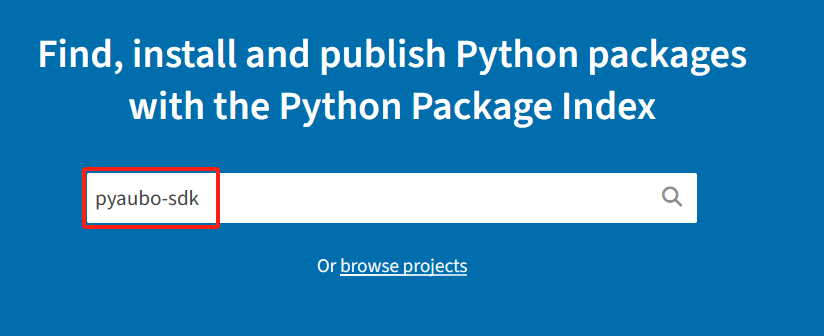
Download the pyaubo-sdk.
Click on "Download files", find the .whl file of the corresponding version in the Built Distributions section, and click to download.

After the download is completed, switch to the directory where the .whl file is located and install the pyaubo-sdk using the pip command. For example, to install the pyaubo_sdk library for the 64-bit Python version 3.11 on the Windows system, enter the command below.
pip install pyaubo_sdk-0.22.2-cp311-cp311-win_amd64.whlAfter successful installation, the interface will look like the figure below.

Method 2: Download and install the pyaubo_sdk using the pip command
Install the command
pip install pyaubo_sdkInstall the specified version
pip install pyaubo_sdk==x.x.xFor example, download and install version 0.22.2
pip install pyaubo_sdk==0.22.2
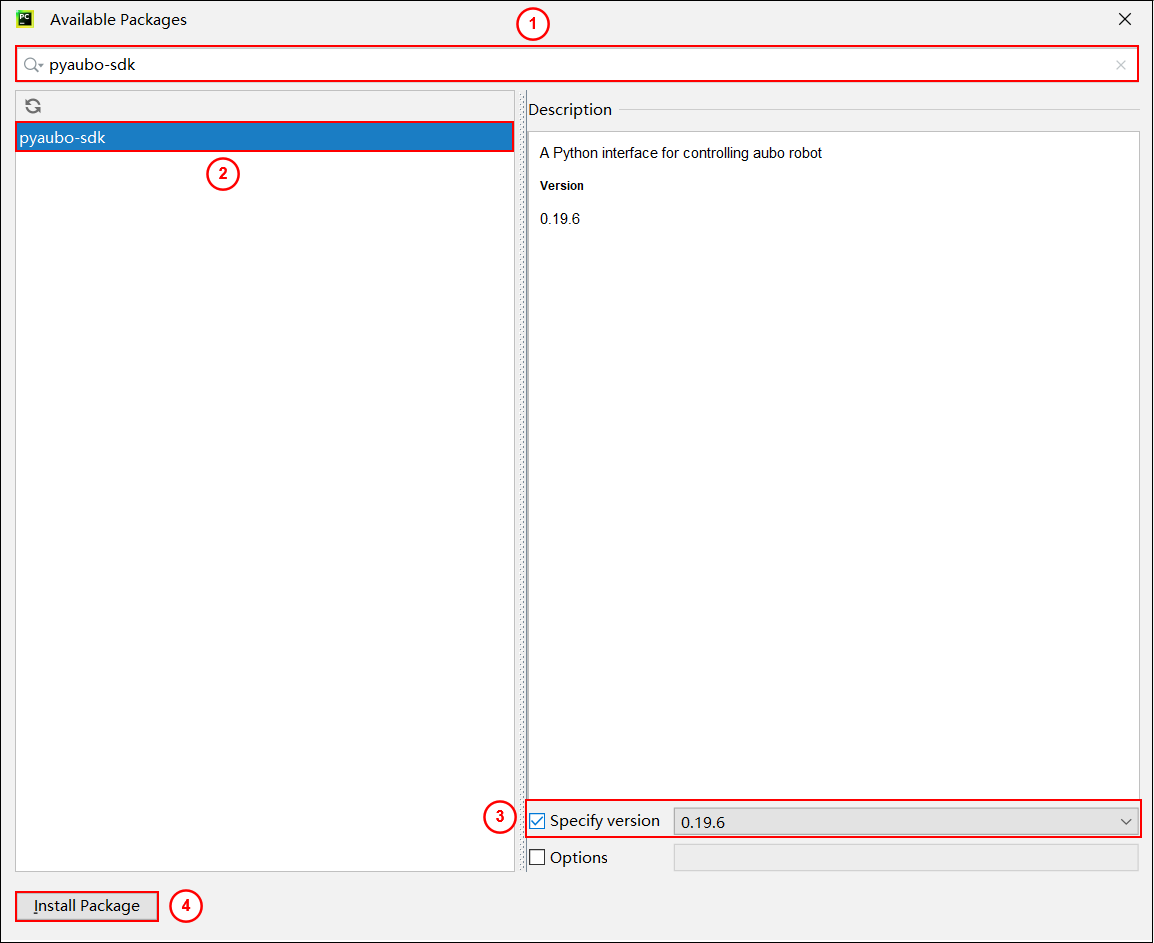
Method 3: Download and install the pyaubo_sdk via PyCharm
File -> Settings
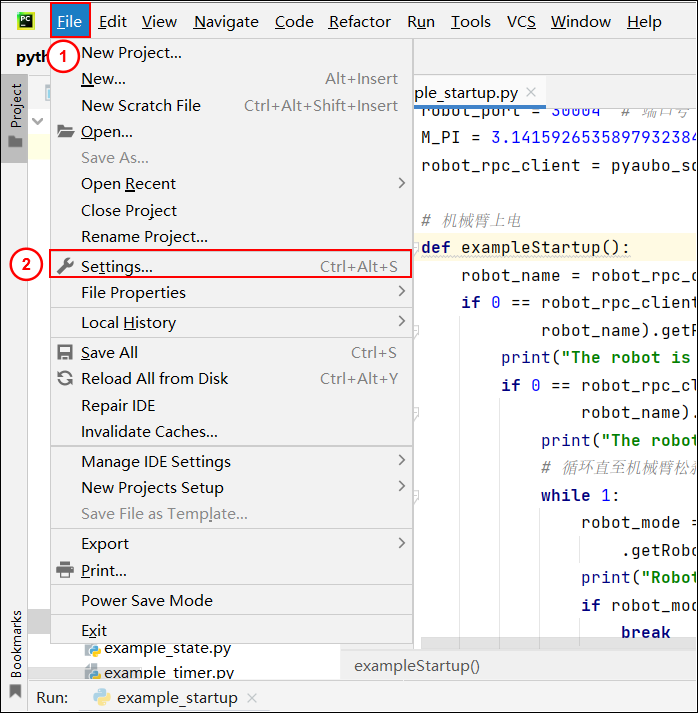
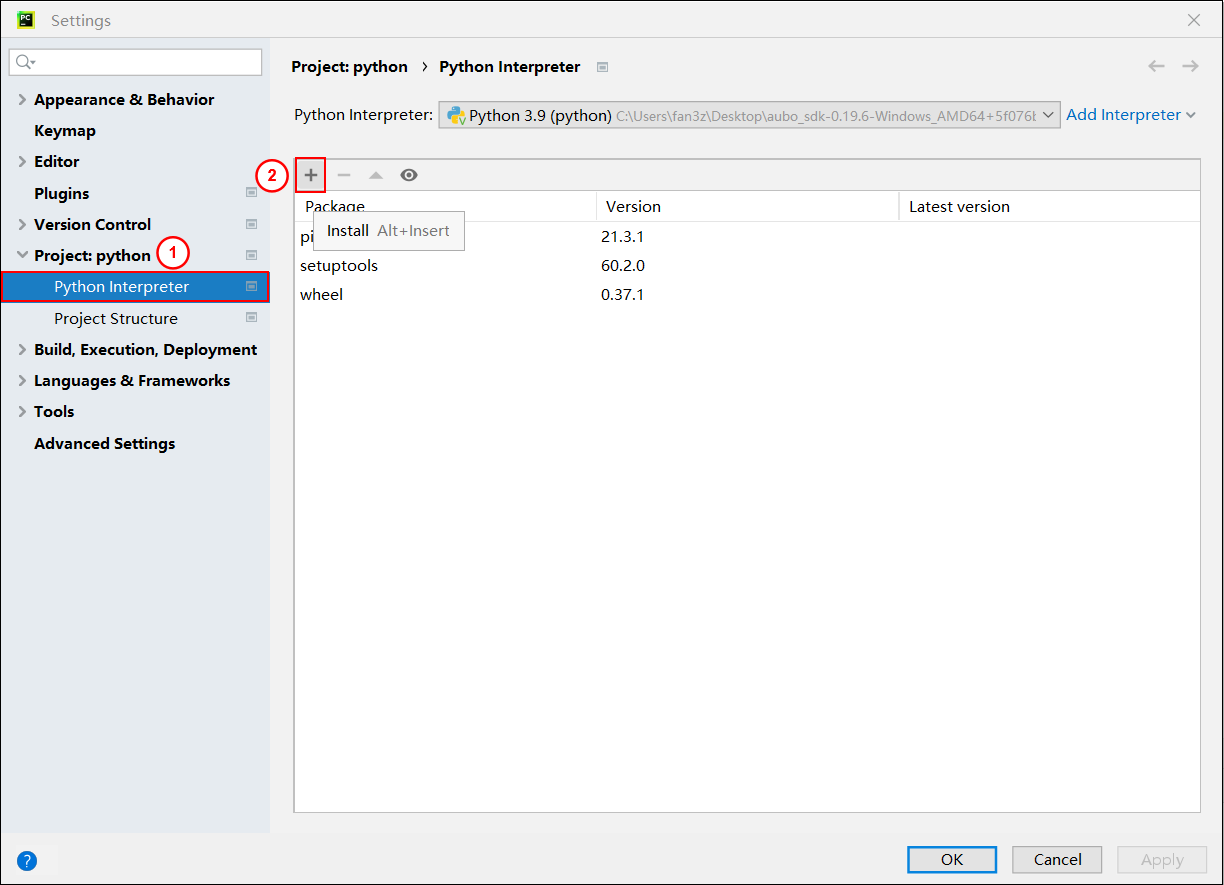
On the Python Interpreter page, click the "+" icon.
Search for the pyaubo-sdk, select the version, and click "Install Package".
Uninstallation
Method 1: Uninstall the pyaubo-sdk using the pip command
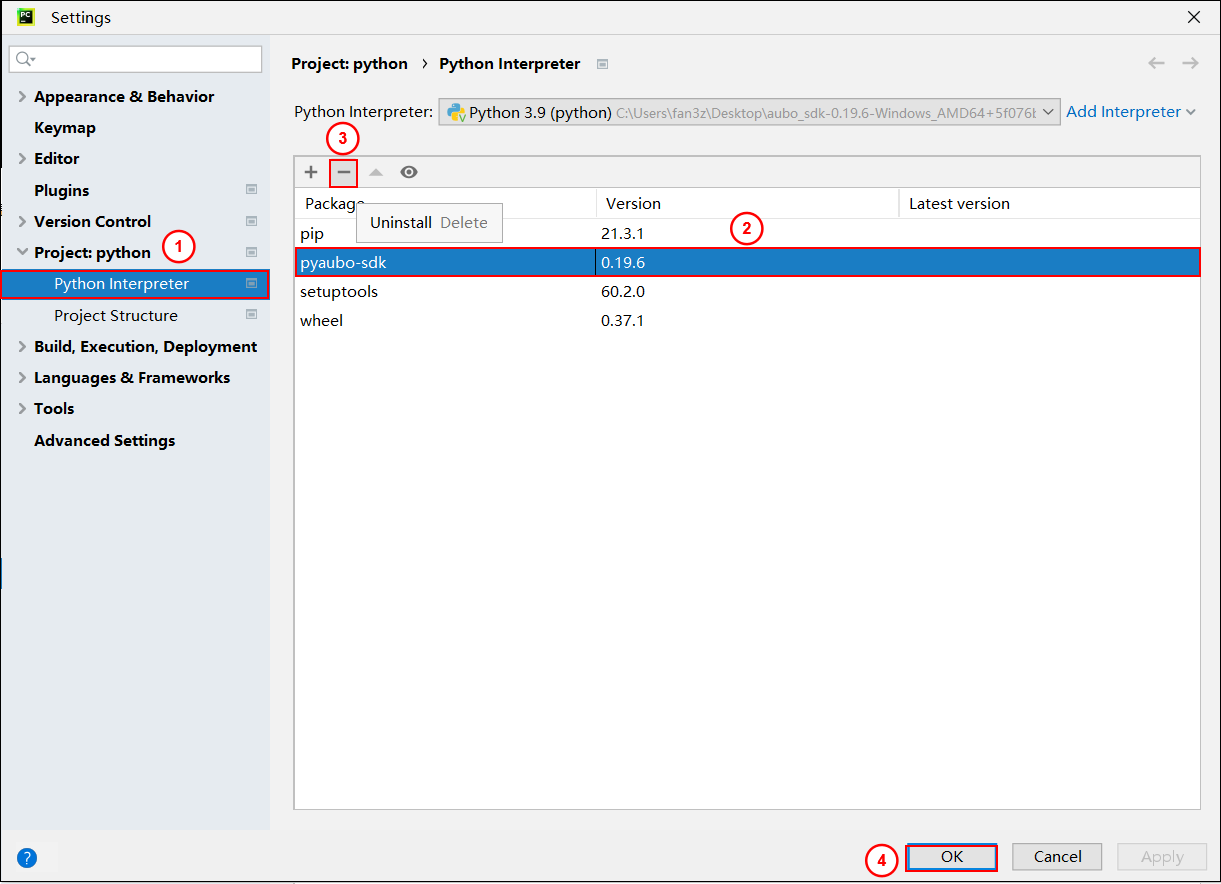
pip uninstall pyaubo_sdkMethod 2: Uninstall the pyaubo-sdk via PyCharm
File -> Settings
In the Python Interpreter interface, select the pyaubo-sdk, click the "—" icon to start uninstallation. After the uninstallation is completed, click "OK".
Java SDK Development Package
Java SDK installation can be done in two ways: local installation and remote dependency installation.
Local Installation
Obtaining the SDK
Java SDK download link: Download the latest
aubo_sdk-x.x.x.jarfile from the official mirror site aubo sdk (aubo-robotics.cn).Current version:
aubo_sdk-0.26.0-rc.6.jar.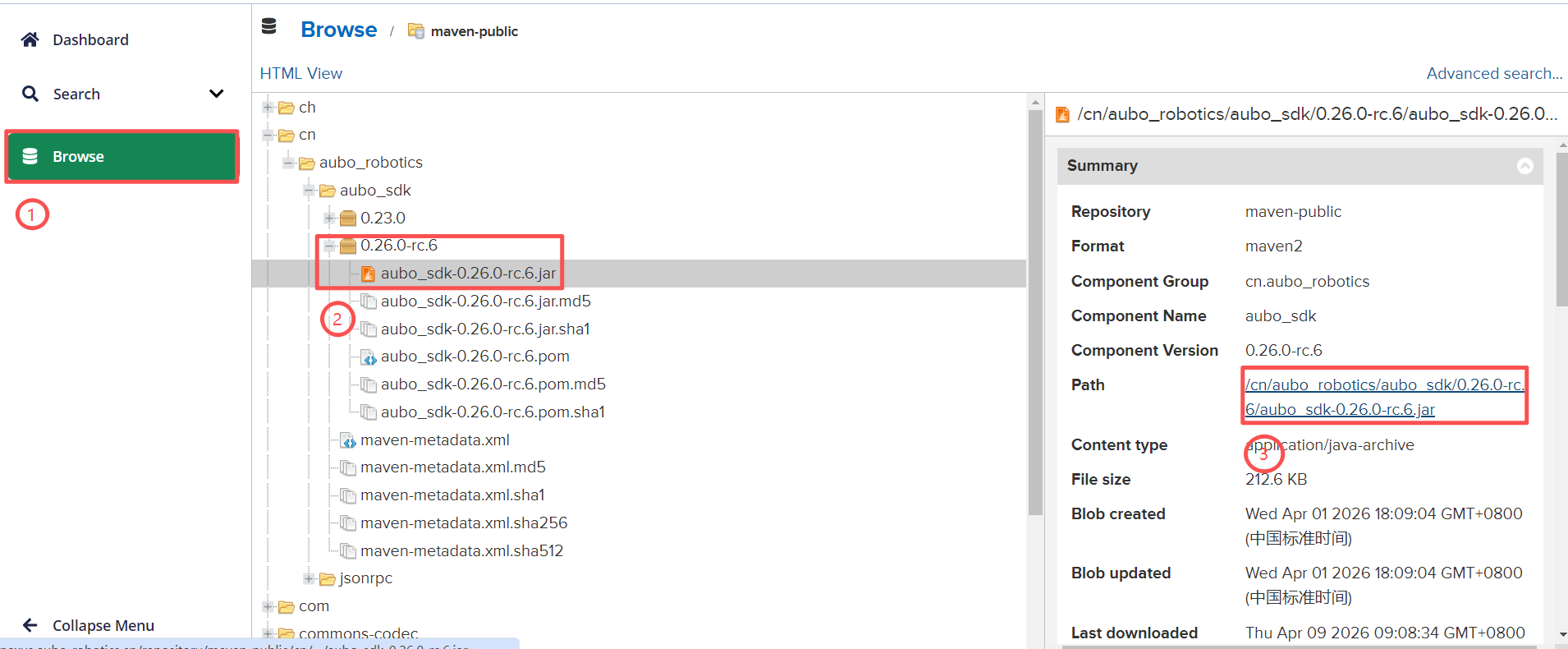
SDK Installation
Open the command line terminal in the directory where the
JARfile is located.Run the following command:
Note:
Replace
aubo_sdk-0.26.0-rc.6.jarwith the corresponding SDK version.mvn install:install-file -Dfile=aubo_sdk-0.26.0-rc.6.jar -DgroupId=cn.aubo_robotics -DartifactId=aubo_sdk -Dversion=0.26.0-rc.6 -Dpackaging=jarWhen
BUILD SUCCESSappears, the installation is complete.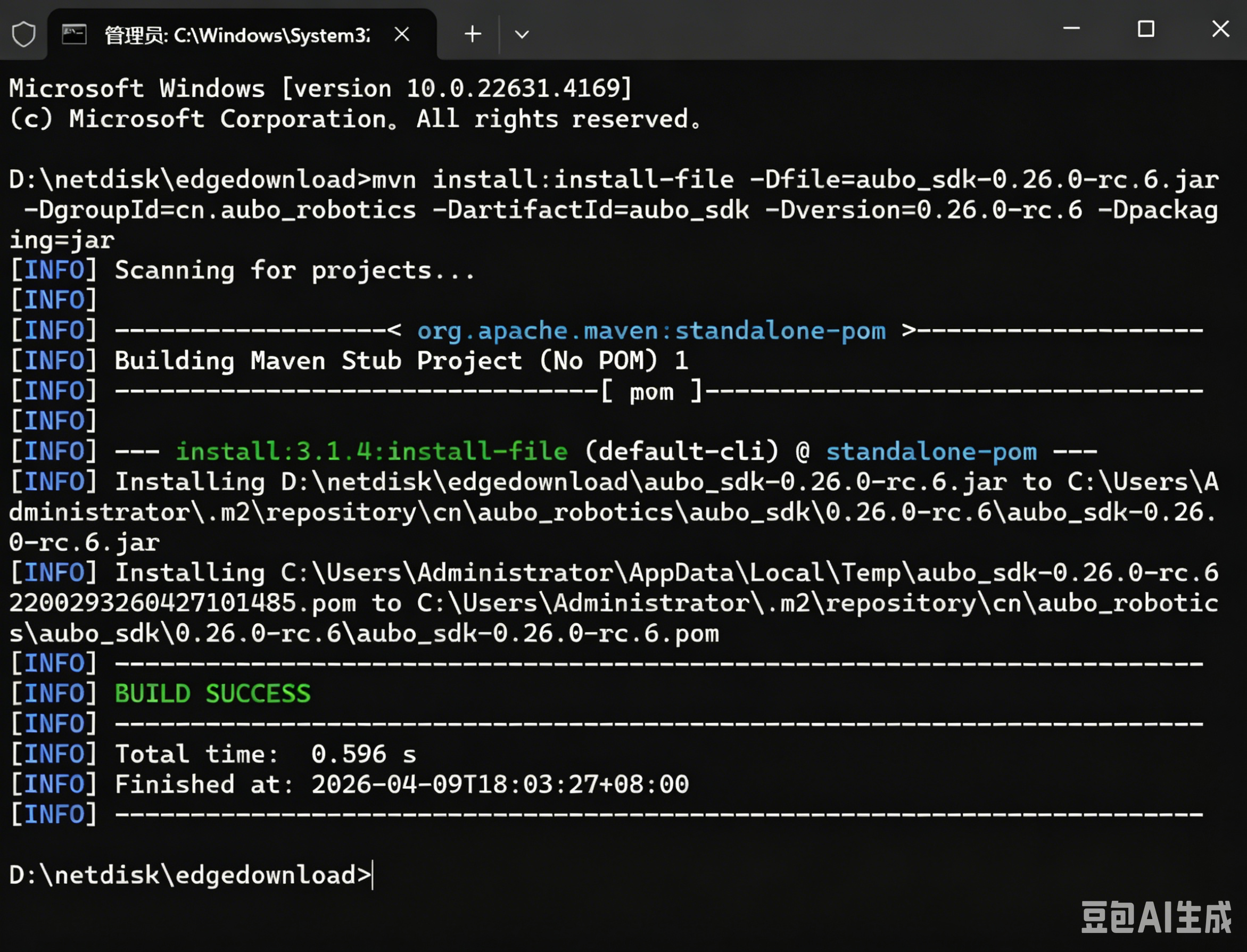
Remote Dependency Installation
Maven Remote Dependency Integration
Adding Dependencies
Add the following dependency to the project configuration file pom.xml:
Note:
Replace <version>0.26.0-rc.6</version> with the target SDK version.
Click to view dependencies:
<!-- Project dependency configuration: import AUBO robot Java SDK -->
<dependencies>
  <!-- aubo sdk core dependency -->
  <dependency>
      <groupId>cn.aubo_robotics</groupId>
      <artifactId>aubo_sdk</artifactId>
      <version>0.26.0-rc.6</version>
  </dependency>
</dependencies>

<!-- aubo nexus repository: AUBO official Maven repository for online SDK download -->
<repositories>
    <repository>
      <id>cn.aubo_robotics</id>
      <url>http://nexus.aubo-robotics.cn/repository/maven-public/</url>
      <snapshots>
        <enabled>true</enabled>
        <updatePolicy>always</updatePolicy>
      </snapshots>
    </repository>
</repositories>

<!-- Distribution management config: used to publish projects to AUBO repository -->
<distributionManagement>
    <snapshotRepository>
      <id>maven-snapshots</id>
      <url>http://nexus.aubo-robotics.cn/repository/maven-snapshots/</url>
    </snapshotRepository>
    <repository>
      <id>maven-public</id>
      <url>http://nexus.aubo-robotics.cn/repository/maven-public/</url>
    </repository>
</distributionManagement>
IDE Refresh and Synchronization
In IntelliJ IDEA, click [Reload All Maven Projects].
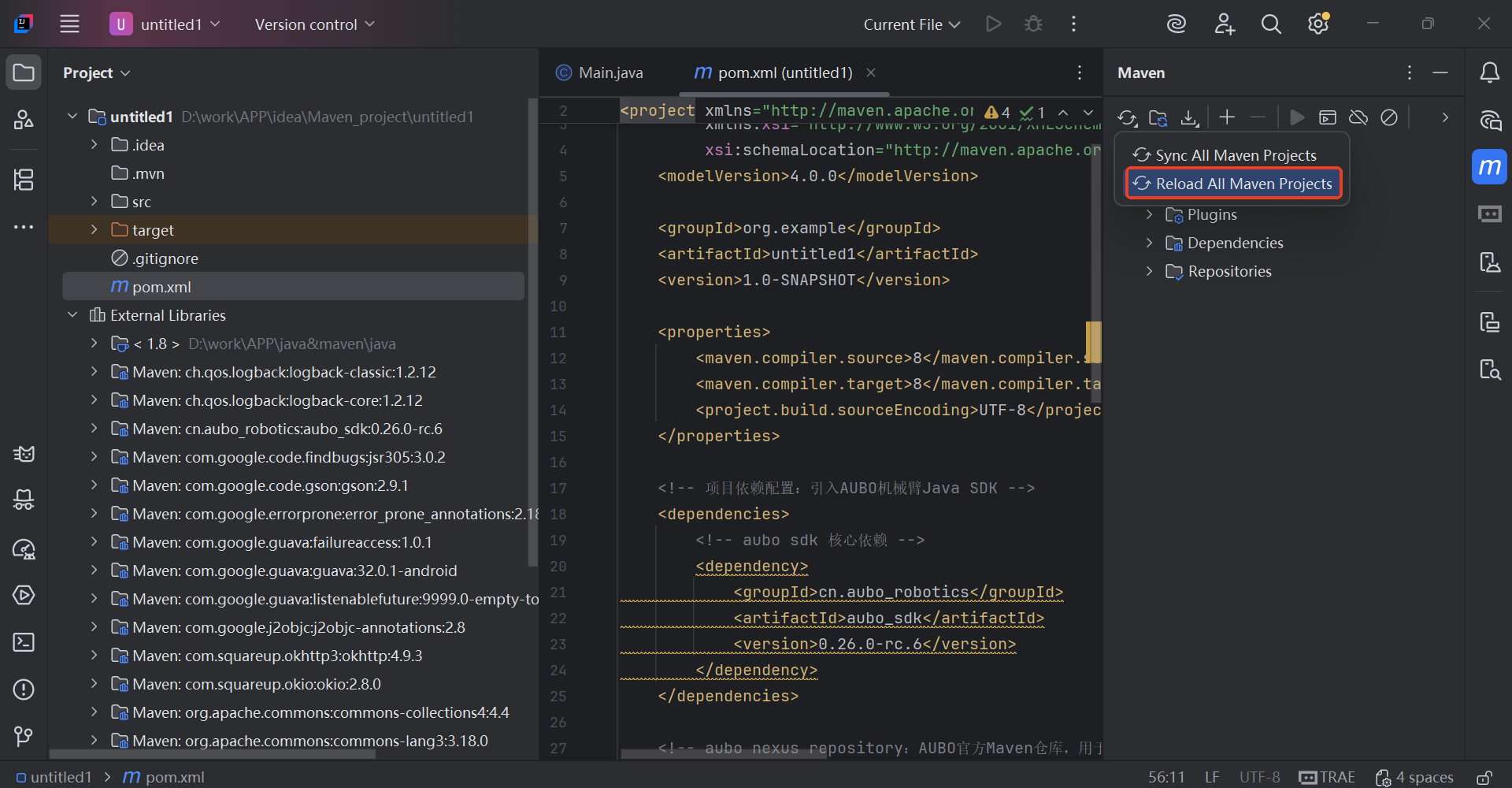
When
aubo_sdk-0.26.0-rc.6.jarappears in External Libraries, the installation is successful.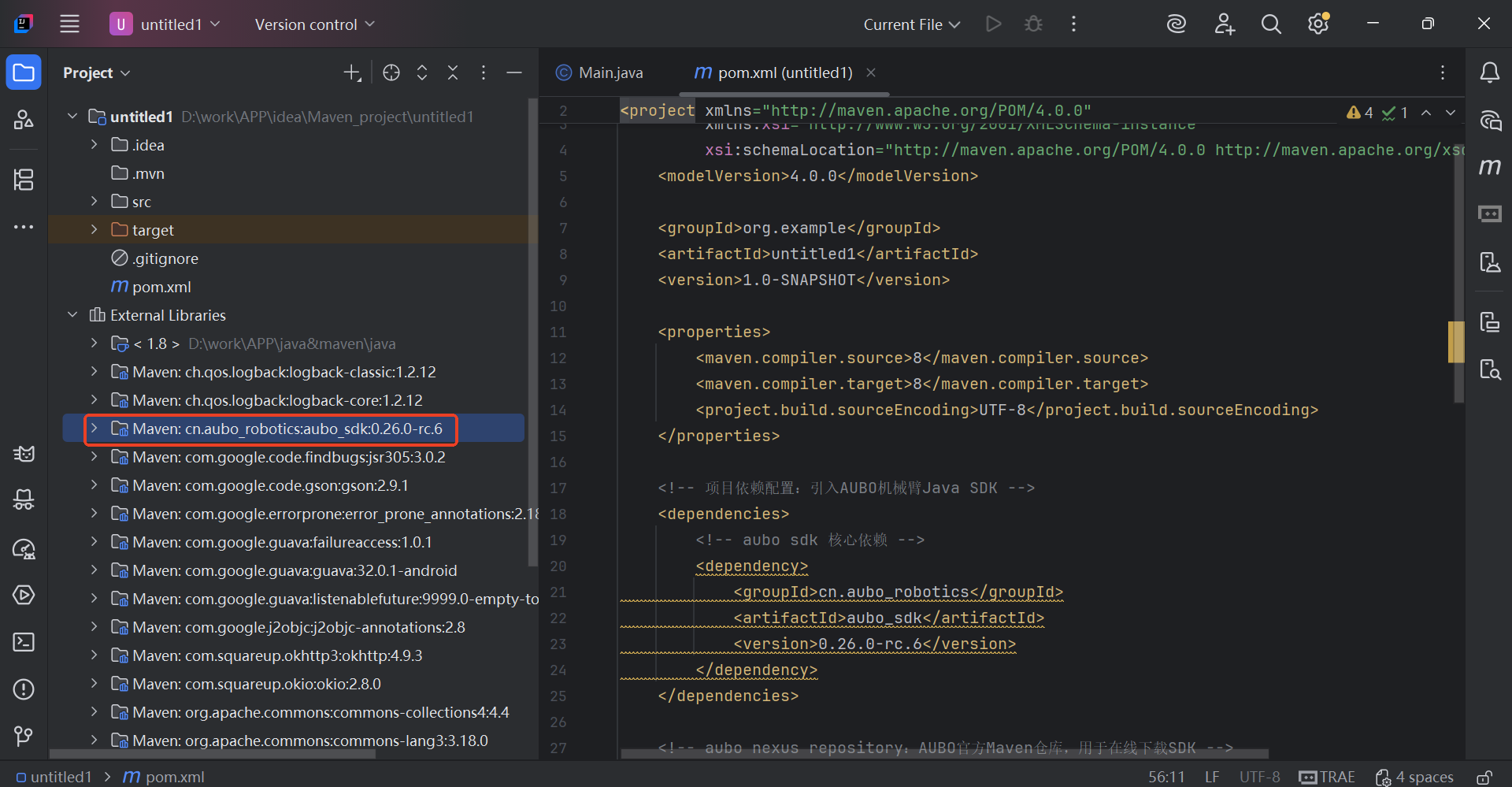
Android Project Repository Configuration
This section demonstrates how to import and verify AUBO Java SDK for Android projects using Android Studio.
Note:
For Android projects, it is recommended to integrate the SDK via Gradle + Nexus Maven to easily synchronize the SDK and its related dependencies for unified version management.
Adding Dependencies
Configure
pluginManagementanddependencyResolutionManagementin the Android project'ssettings.gradle.kts.Note
If the project already has relevant repository configurations, you only need to merge the AUBO private repository section to avoid duplicate configuration.
Click to view configuration:
groovypluginManagement { repositories { maven { url = uri("http://nexus.aubo-robotics.cn/repository/maven-public/") isAllowInsecureProtocol = true } maven { setUrl("https://maven.aliyun.com/nexus/content/groups/public/") } maven { setUrl("https://maven.aliyun.com/nexus/content/repositories/jcenter") } maven { setUrl("https://maven.aliyun.com/nexus/content/repositories/google") } maven { setUrl("https://maven.aliyun.com/nexus/content/repositories/gradle-plugin") } maven { setUrl("https://jitpack.io") } gradlePluginPortal() google() mavenCentral() jcenter() } } dependencyResolutionManagement { repositoriesMode.set(RepositoriesMode.FAIL_ON_PROJECT_REPOS) repositories { maven { url = uri("http://nexus.aubo-robotics.cn/repository/maven-public/") isAllowInsecureProtocol = true content { includeGroup("cn.aubo_robotics") } metadataSources { mavenPom() artifact() } } maven { setUrl("https://maven.aliyun.com/nexus/content/groups/public/") } maven { setUrl("https://maven.aliyun.com/nexus/content/repositories/jcenter") } maven { setUrl("https://maven.aliyun.com/nexus/content/repositories/google") } maven { setUrl("https://maven.aliyun.com/nexus/content/repositories/gradle-plugin") } maven { setUrl("https://jitpack.io") } google() mavenCentral() } } include(":app")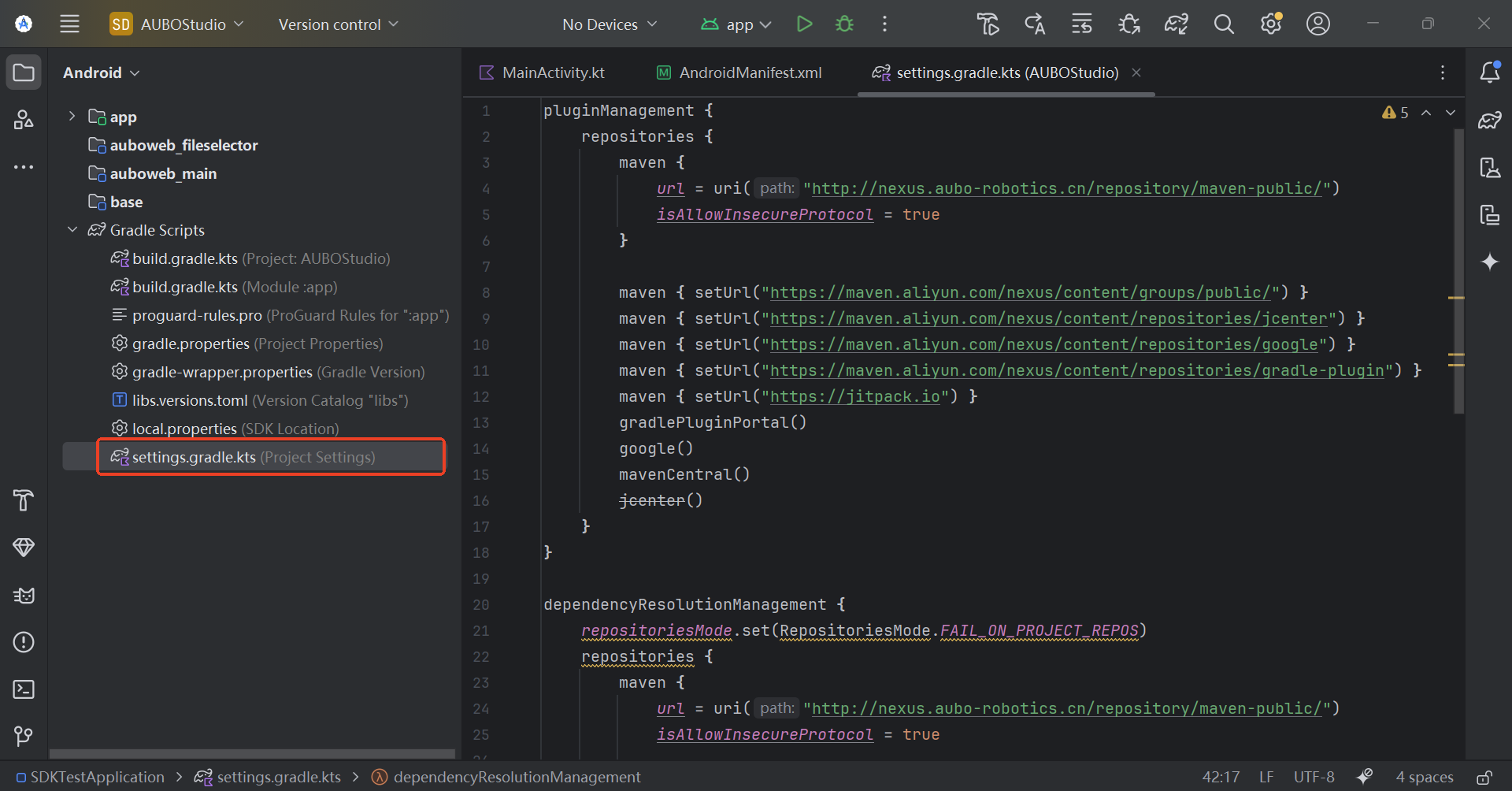
Add AUBO SDK dependency in the App module's
build.gradle.kts.groovydependencies { //AUBO SDK implementation("cn.aubo_robotics:aubo_sdk:0.26.0-rc.6") }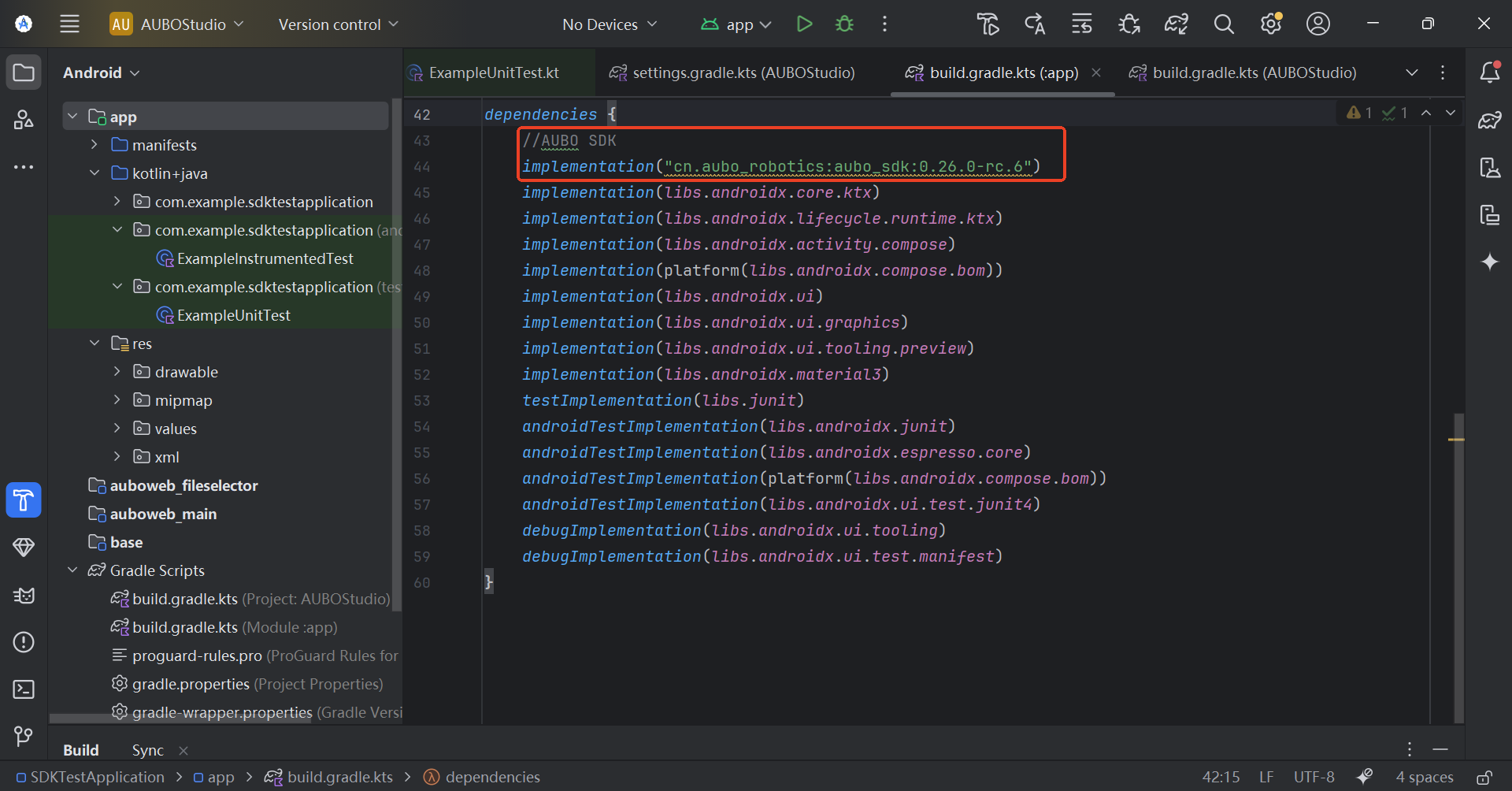
AndroidManifest permission configuration
Required permissions: The SDK requires network communication with the robot controller. Be sure to add the following 2 network permissions in
AndroidManifest.xml, otherwise issues such as connection failure and network request exceptions may occur:<uses-permission android:name="android.permission.INTERNET" /> <uses-permission android:name="android.permission.ACCESS_NETWORK_STATE" />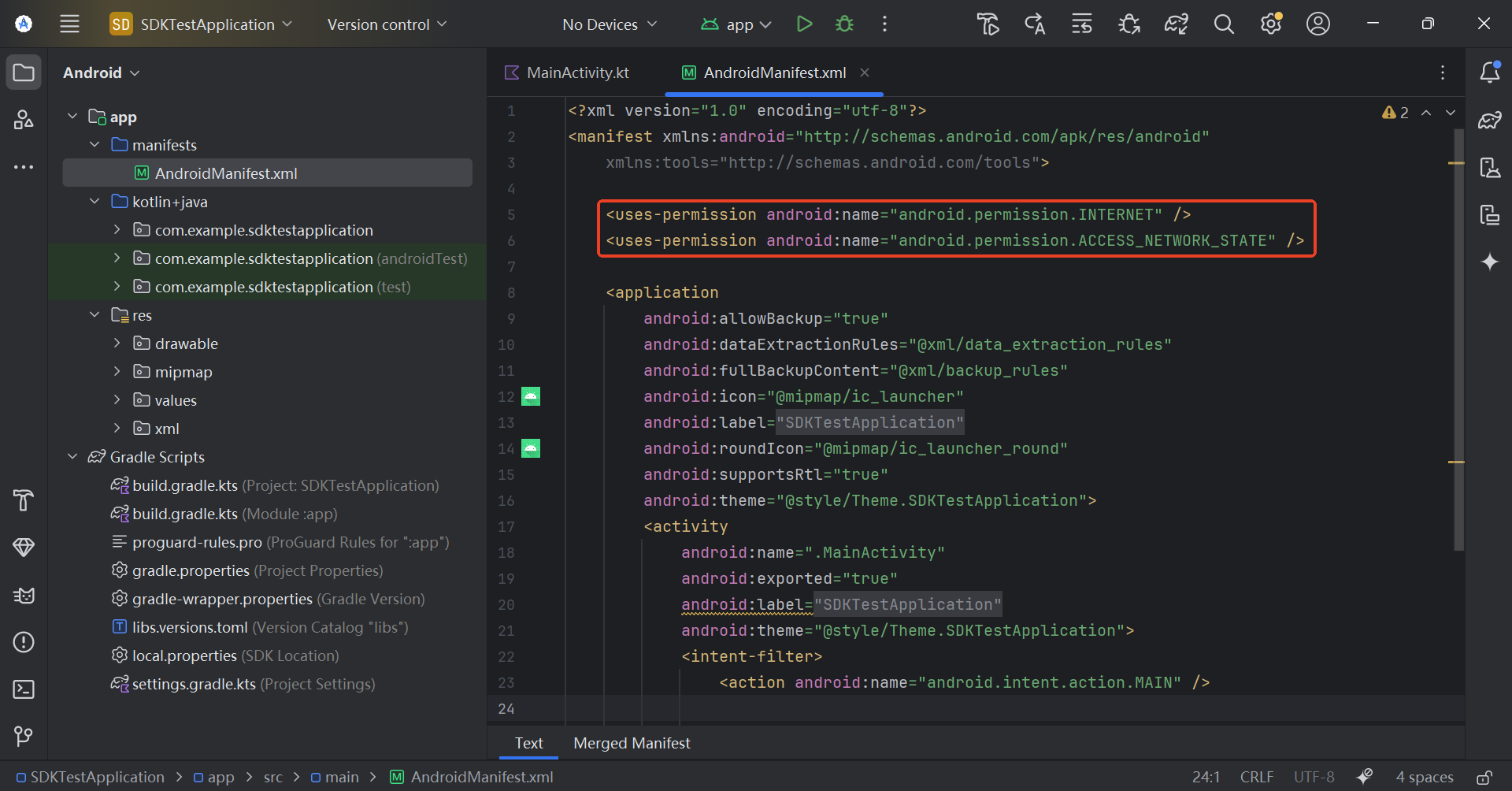
Optional permissions: If the project needs to identify the current Wi-Fi network environment (e.g., auto-scan the robot controller's LAN, verify Wi-Fi connection status), you can add the following permission:
<uses-permission android:name="android.permission.ACCESS_WIFI_STATE" />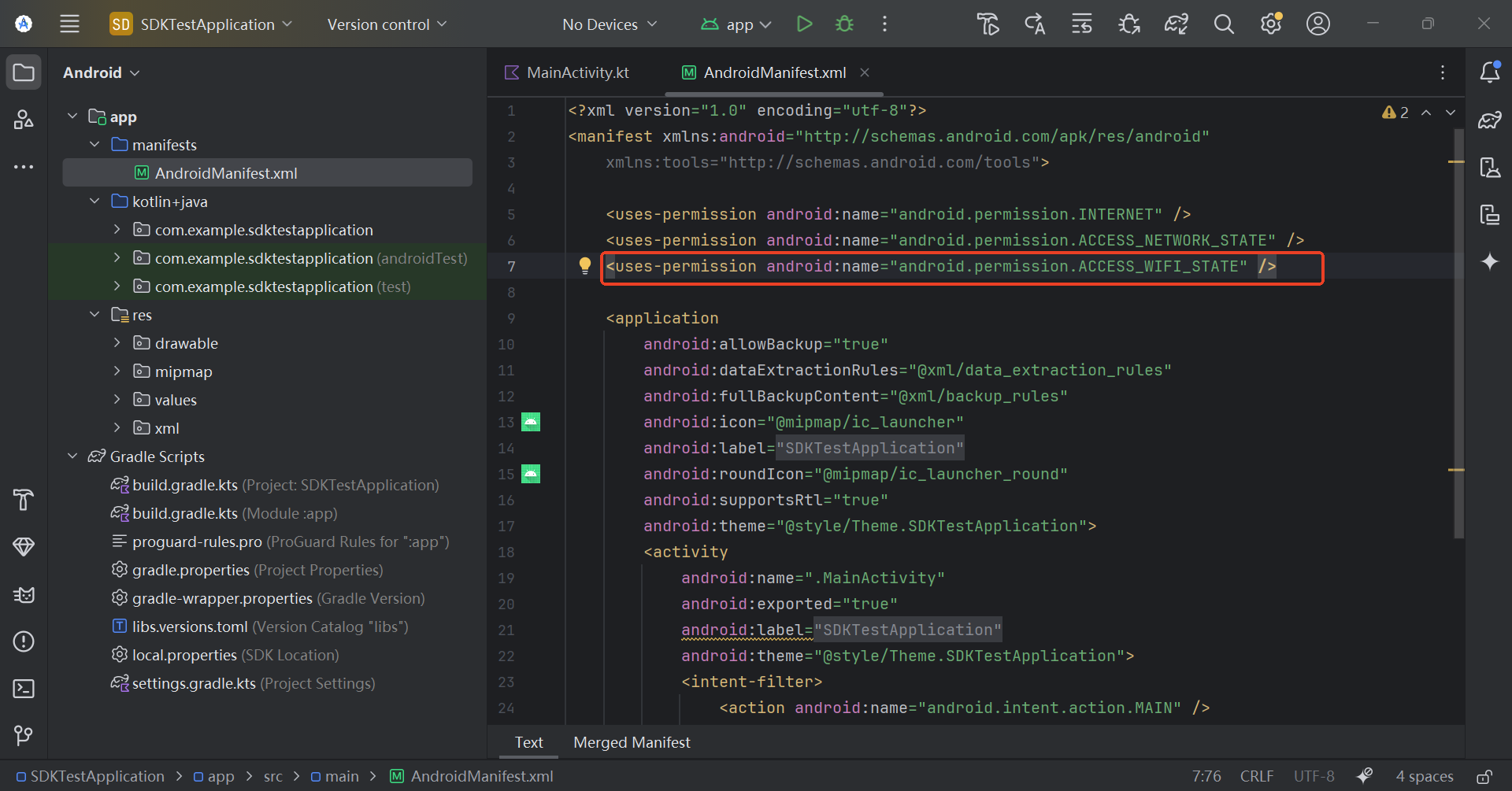
Android 9+ cleartext traffic instructions
Note
- Configure this section when connecting to the robot using HTTP/WebSocket cleartext protocols.
- If the current network policy of the project already meets the requirements, you can skip this section.
Android 9.0 and above systems restrict cleartext network traffic by default for enhanced security. Direct connections may cause robot connection failures or blocked requests.
Add cleartext access support to the
<application>node in the project'sAndroidManifest.xmlfile.<application android:usesCleartextTraffic="true" ... > </application>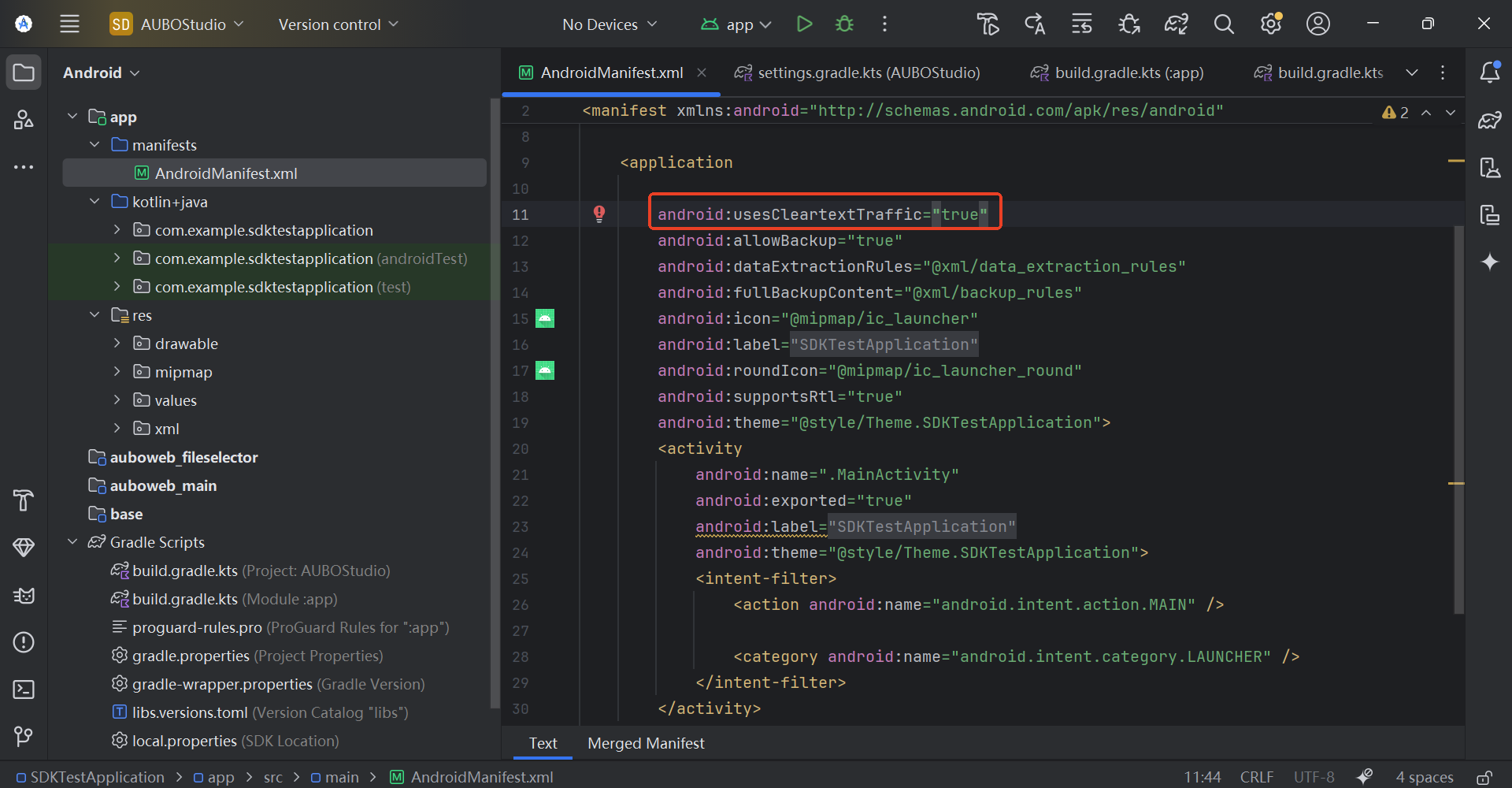
Gradle Sync Verification
In Android Studio, click "File > Sync Project / Gradle Sync".
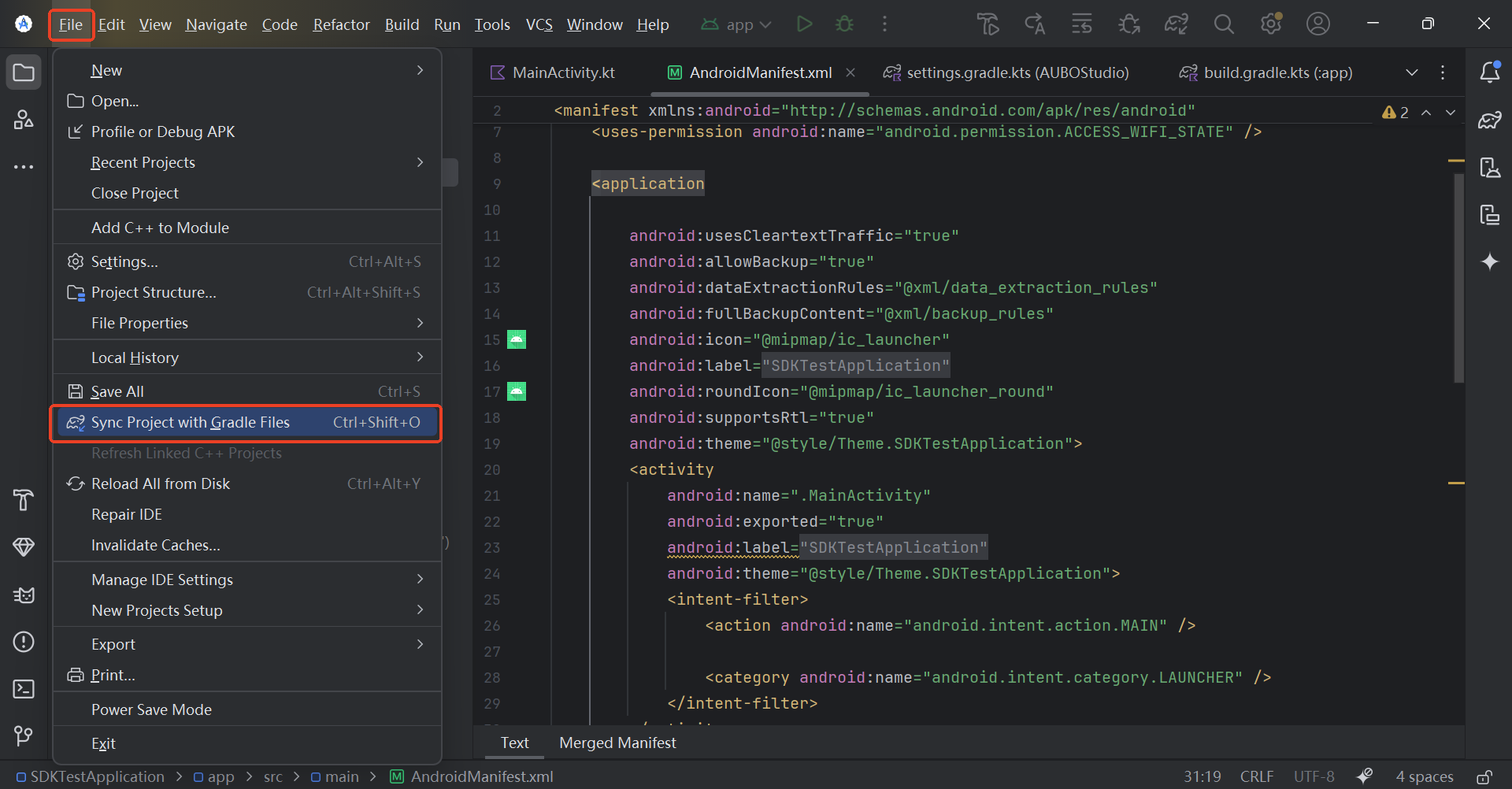
When
BUILD SUCCESSFULappears, the dependency download is complete.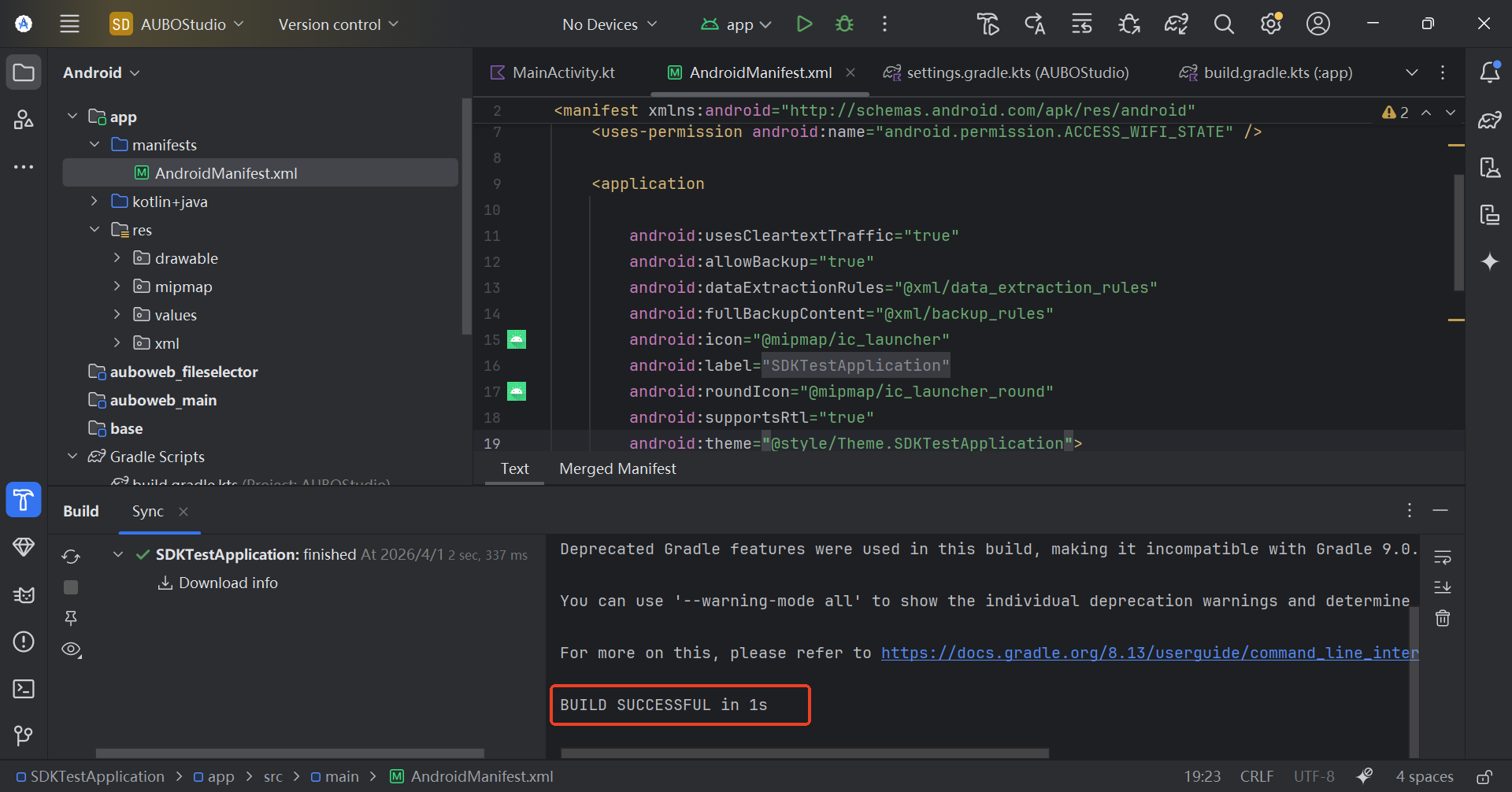
When
aubo_sdk-0.26.0-rc.6.jarappears in External Libraries, the installation is successful.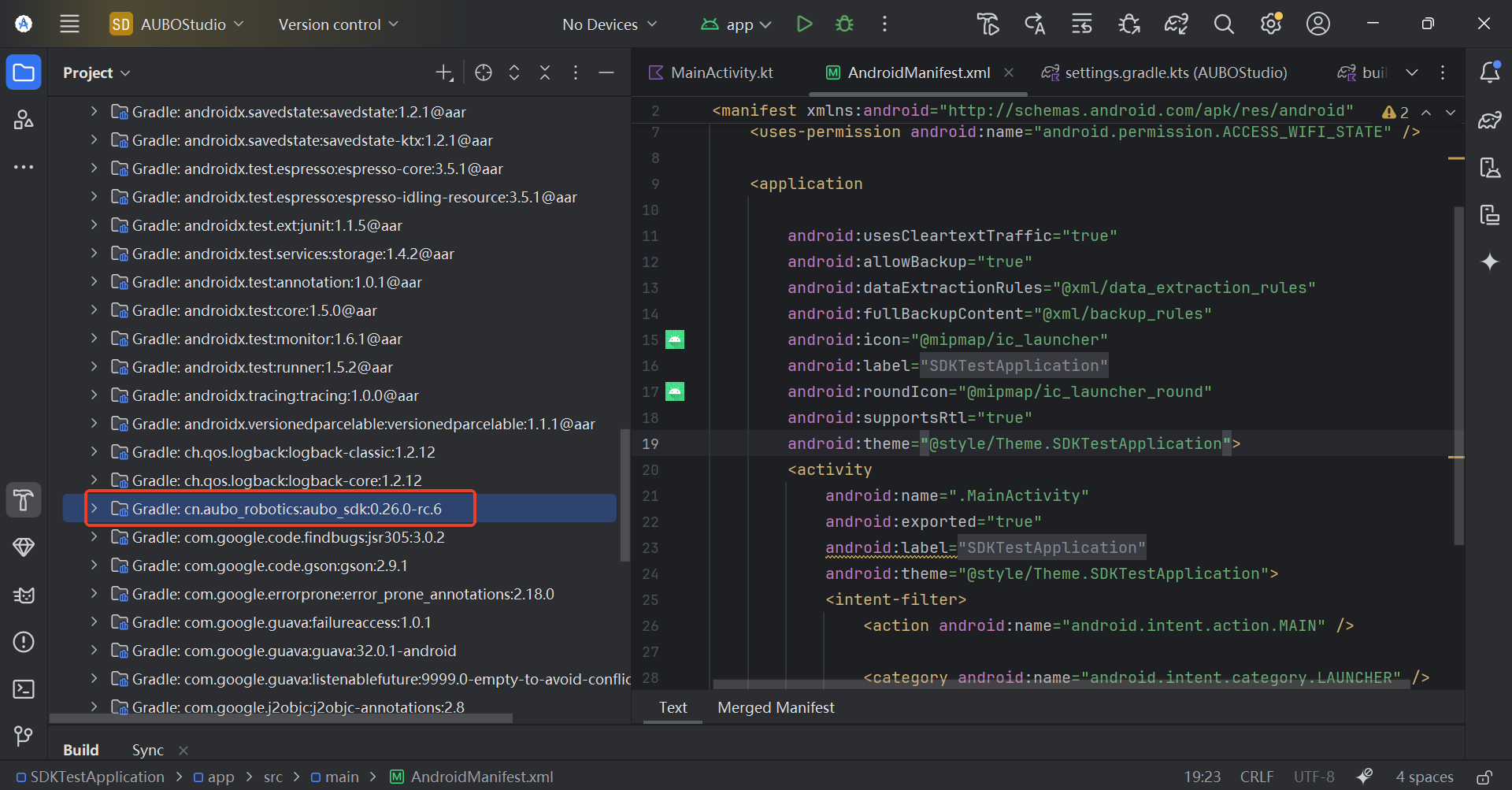
JavaScript SDK Development Package
The JavaScript SDK package requires the npm registry to be configured before it can be downloaded from the AUBO npm repository.
Run the following command in the IDE terminal to install the JavaScript SDK.
npm install @aubo/aubo_sdkNote:
To install a specific version, append
@<SDK version>to the command. For example,npm install @aubo/aubo_sdk@0.27.1-rc.4.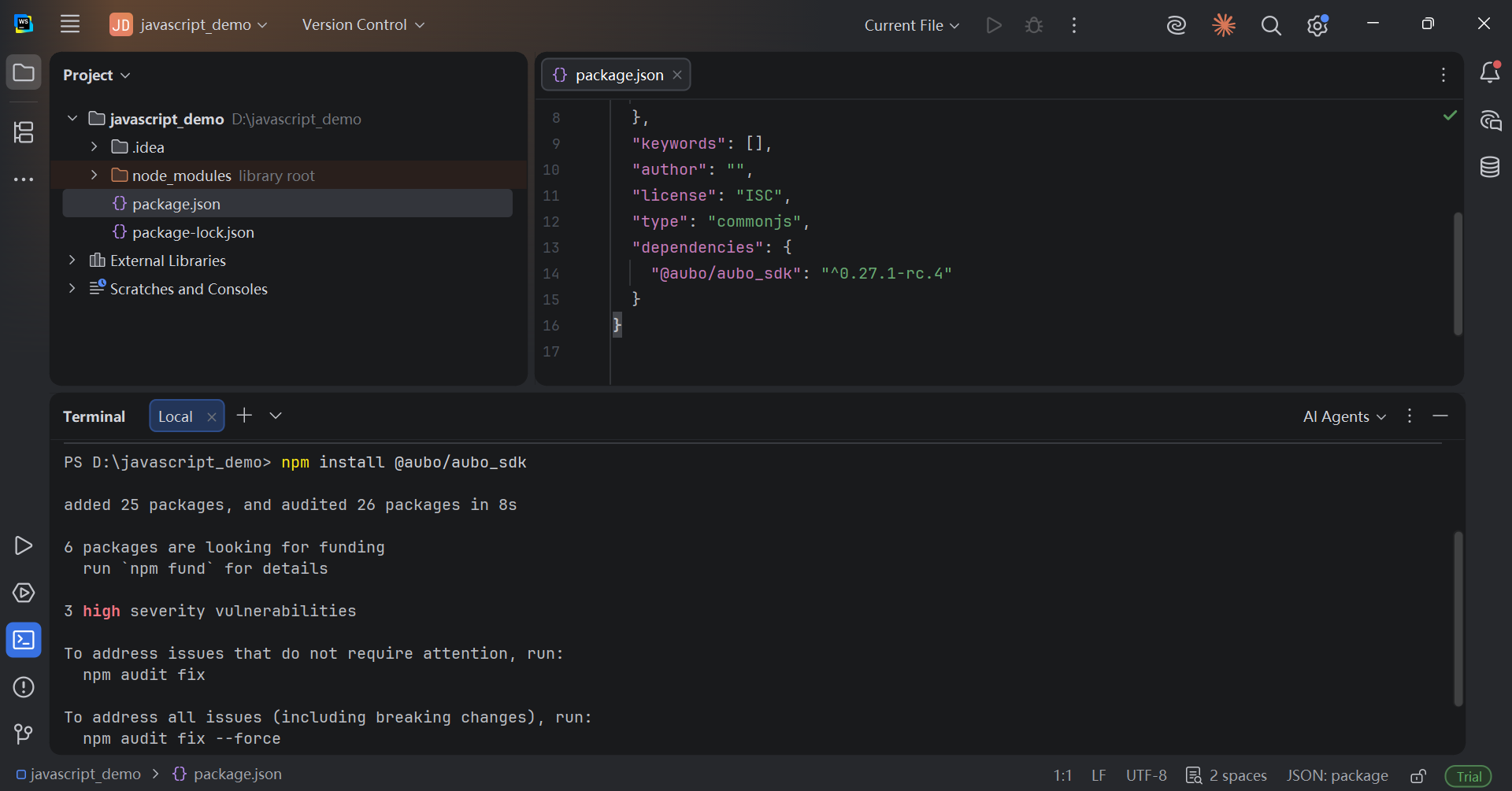
After the installation is complete, open the
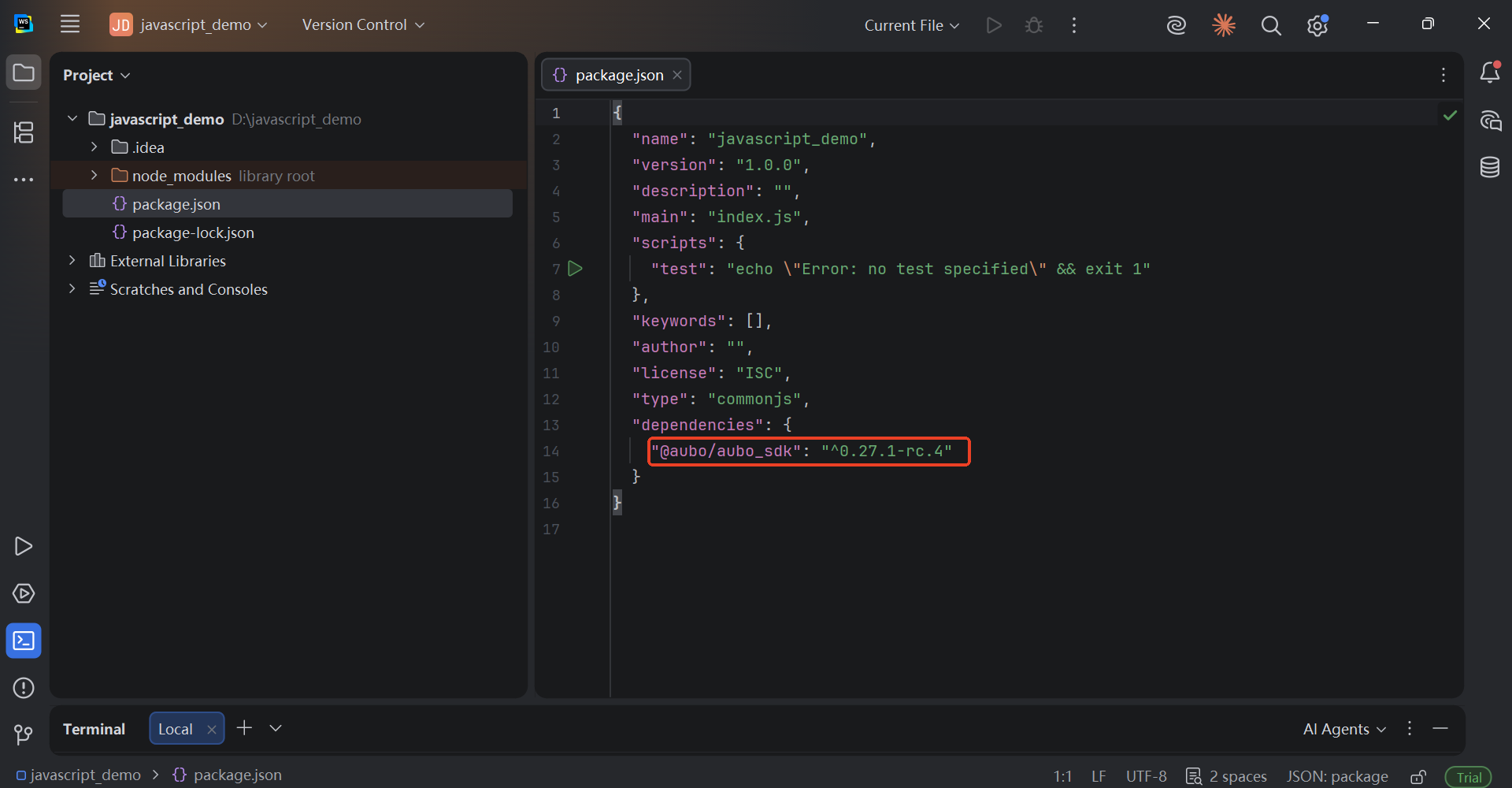
package.jsonfile in the project root directory. If@aubo/aubo_sdkand its version appear in thedependenciesfield, the dependency has been added successfully.