Examples of Running Java SDK
In Windows Environment
This section describes how to run Java SDK examples in the Windows environment, covering standard Maven projects and Android projects.
Note
If the SDK client connects to a real robot arm, you must set the IP address in the code to the robot arm's IP address.
If the project runs on the Aubo Sim virtual machine and the SDK client connects to the virtual machine, the IP address should be the virtual machine's IP address.
Java SDK Maven Project Example
This section describes how to use IntelliJ IDEA to power on the Aubo robot arm via the Java SDK in the Windows environment.
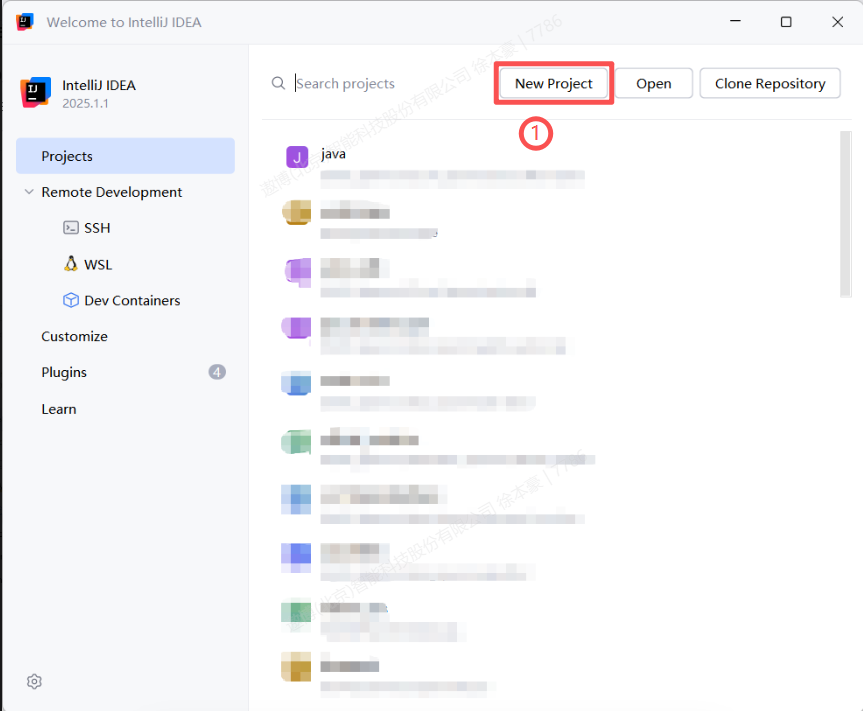
Open IntelliJ IDEA and click New Project.
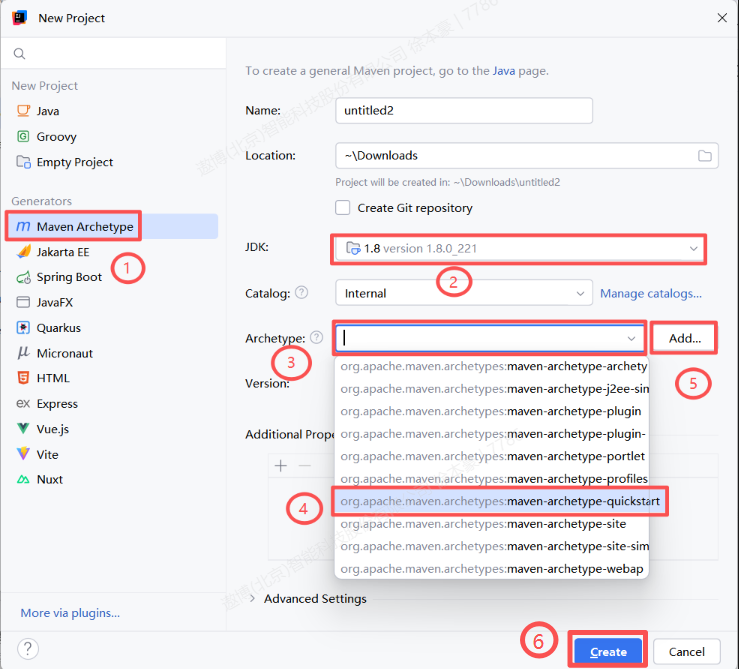
Create a Maven Archetype project and select the relevant options as shown in the steps below.
Refer to the Installation Guide to configure the Maven project repository, then run the Maven build command in the terminal:
mvn clean compile -U.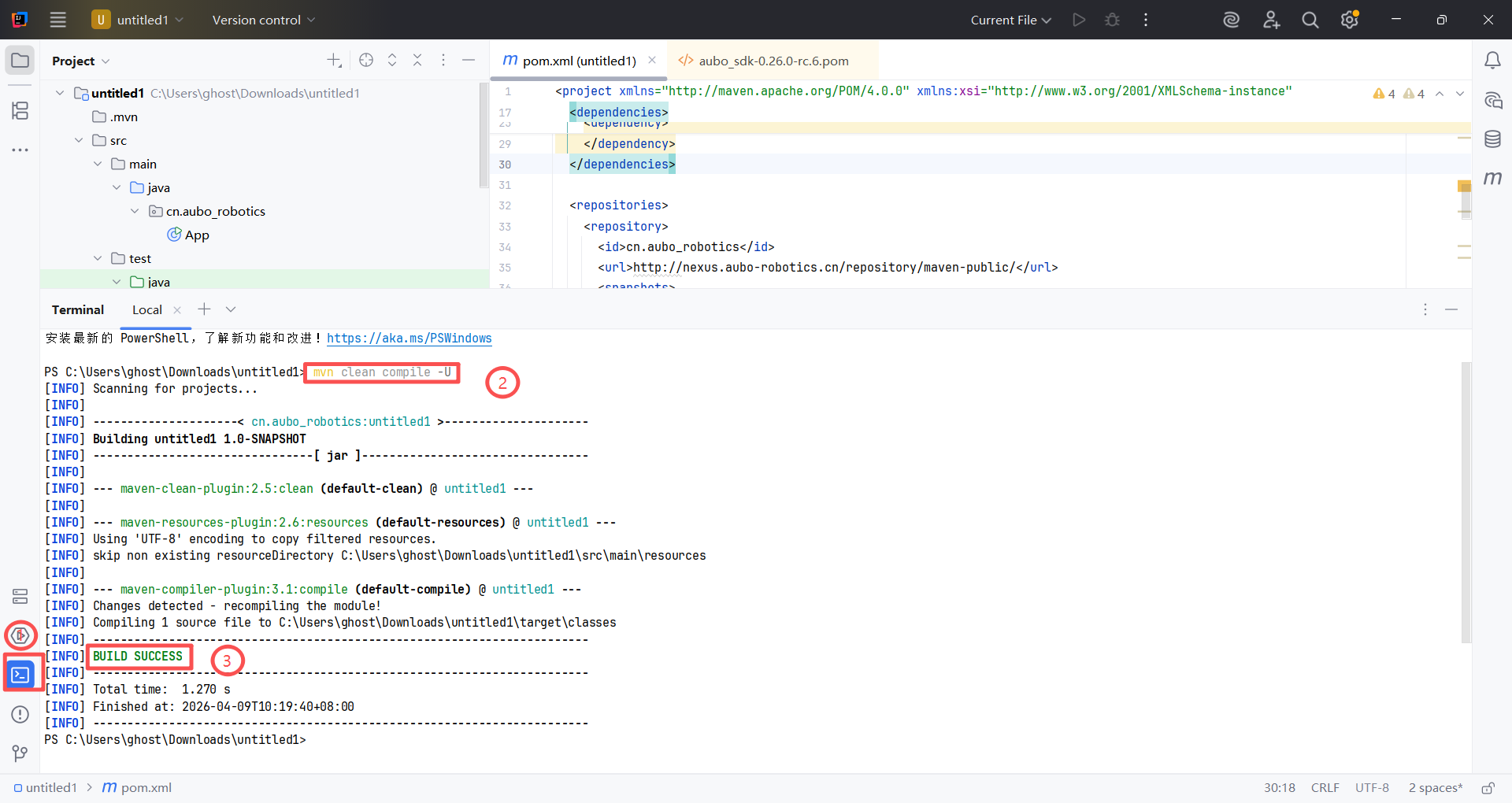
Create a test class
AppTest.javain the test directory and run it.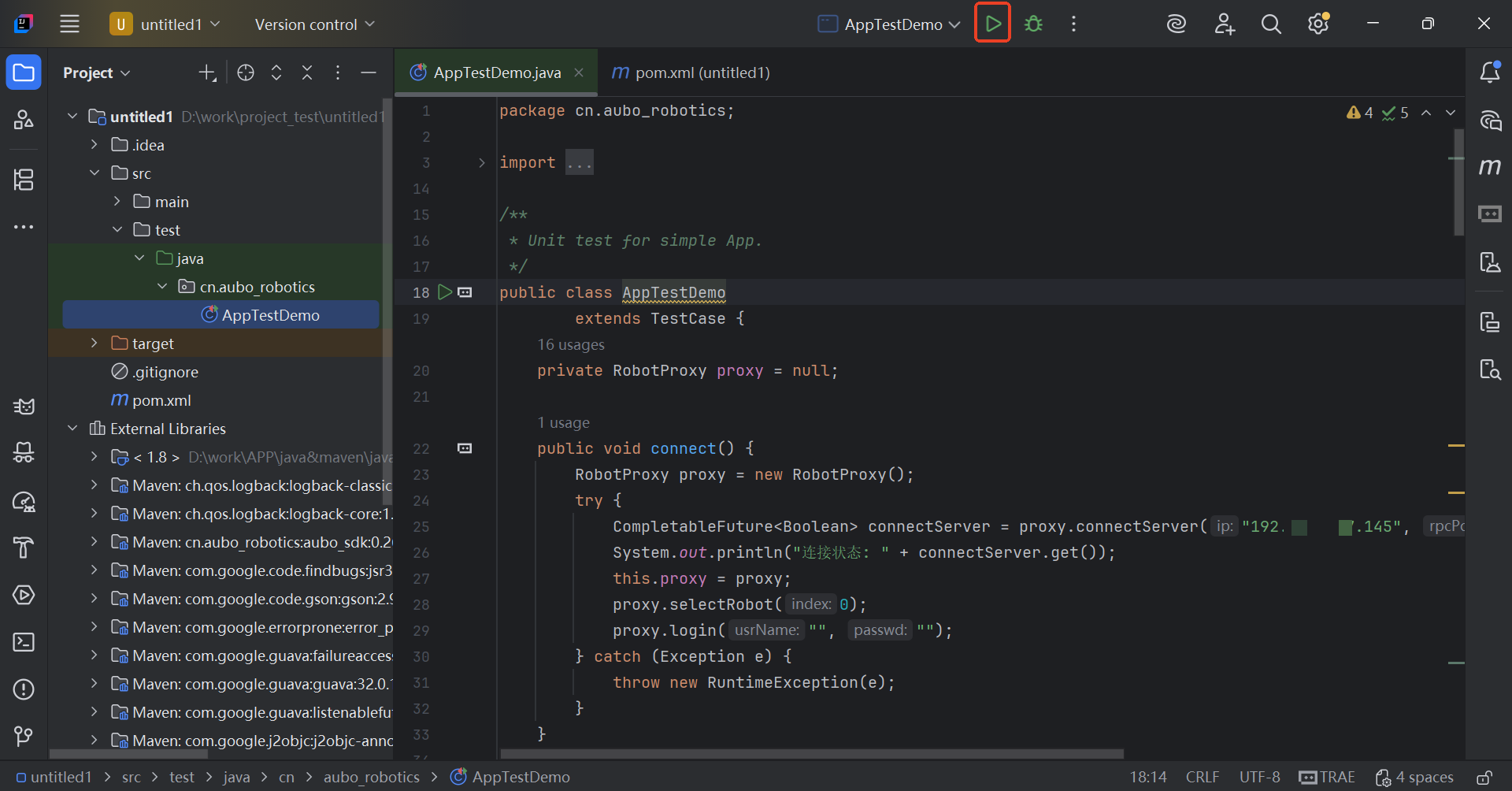
Click to view sample code
package cn.aubo_robotics;

import cn.aubo_robotics.aubo_sdk.aubo.enums.RobotModeType;
import cn.aubo_robotics.aubo_sdk.aubo.enums.RuntimeState;
import cn.aubo_robotics.aubo_sdk.aubo.enums.SafetyModeType;
import cn.aubo_robotics.aubo_sdk.aubo_sdk.RtdeRecipe;
import cn.aubo_robotics.aubo_sdk.robot_proxy.RobotProxy;
import com.google.common.collect.Lists;
import junit.framework.TestCase;

import java.util.List;
import java.util.concurrent.CompletableFuture;
import java.util.function.Consumer;

/**
 * Unit test for simple App.
 */
public class AppTestDemo
        extends TestCase {
    private RobotProxy proxy = null;

    public void connect() {
        RobotProxy proxy = new RobotProxy();
        try {
            CompletableFuture<Boolean> connectServer = proxy.connectServer("192.x.x.x", 9012, 9013, 30003);
            // Important: add a 5-second timeout to get() as a substitute for method parameter timeout
            System.out.println("Connection status: " + connectServer.get(5000, java.util.concurrent.TimeUnit.MILLISECONDS));
            this.proxy = proxy;
            proxy.selectRobot(0);
            proxy.login("", "");
        } catch (Exception e) {
            throw new RuntimeException(e);
        }
    }

    public void getRobotsAndSelect() {
        try {
            List<String> robotNames = this.proxy.getRobotNames();
            robotNames.forEach(System.out::println);

            if (!robotNames.isEmpty()) {
                this.proxy.selectRobot(0);
                this.proxy.login("", "");
                System.out.println(robotNames.get(0) + " is logined.");
            }
        } catch (Exception e) {
            throw new RuntimeException(e);
        }
    }

    public void poweron() {
        try {
            boolean connected = this.proxy.hasLogin();
            if (this.proxy != null && connected) {
                while (true) {
                    RuntimeState status = this.proxy.getRuntimeMachine().getRuntimeState();
                    RobotModeType robotModeType = this.proxy.getRobotState().getRobotModeType();
                    SafetyModeType safetyModeType = this.proxy.getRobotState().getSafetyModeType();

                    System.out.println(
                            "Before poweron. robot status: " +
                                    status +
                                    ",  mode type: " +
                                    robotModeType +
                                    ", safetyModeType:" +
                                    safetyModeType
                    );

                    if (
                            safetyModeType == SafetyModeType.RobotEmergencyStop ||
                                    safetyModeType == SafetyModeType.SystemEmergencyStop ||
                                    safetyModeType == SafetyModeType.SafeguardStop
                    ) {
                        System.out.println("Auto enable robot: emergency stop.");
                        break;
                    }
                    if (status == RuntimeState.Stopped && (robotModeType == RobotModeType.PowerOff || robotModeType == RobotModeType.NoController)) {
                       this.proxy.getRobotManage().poweron();
                       System.out.println("Robot has power on.");
                       Thread.sleep(3000);
                   }
                   // The robot has been powered on, protective stop will no longer power on
                   else if (robotModeType == RobotModeType.Running) {
                       break;
                   }

                   // Release brakes
                   if (robotModeType == RobotModeType.Idle) {
                       this.proxy.getRobotManage().startup();
                       System.out.println("Robot has startup.");
                       Thread.sleep(1000);
                       break;
                   }
               }
           }
       } catch (Exception e) {
           throw new RuntimeException(e);
       }
   }

   public void addRtdeTopicCallback() {
       try {
           Consumer<Object> callback = new Consumer<Object>() {
               @Override
               public void accept(Object o) {
                   System.out.println("single callback: " + o);
               }
           };
           this.proxy.addRtdeTopicCallback(0, RtdeRecipe.TopicOutputPoolEnum.target_q.name(), callback, 100, null);

           Thread.sleep(5000);
       } catch (Exception e) {
           throw new RuntimeException(e);
       }
   }

   public void disconnect() {
       try {
           List<String> topicList = Lists.newArrayList(RtdeRecipe.TopicOutputPoolEnum.target_q.name());
           this.proxy.deleteRtdeTopicCallbacks(0, topicList);
           this.proxy.disConnectFromServer();
           this.proxy.logout();
           this.proxy = null;
       } catch (Exception e) {
           throw new RuntimeException(e);
       }
   }

   public static void main(String[] args) {
       try {
           AppTestDemo appTest = new AppTestDemo();
           appTest.connect();
           appTest.getRobotsAndSelect();
           System.out.println("[AppTest] Connected successfully.");
           appTest.poweron();
           System.out.println("[AppTest] Robot has been powered on.");
           appTest.addRtdeTopicCallback();
           System.out.println("[AppTest] RTDE subscription started.");
           Thread.sleep(3000);
           appTest.disconnect();
           System.out.println("[AppTest] Disconnected.");
       } catch (Exception e) {
           System.out.printf("%s\n", e.getMessage());
       }
   }
}
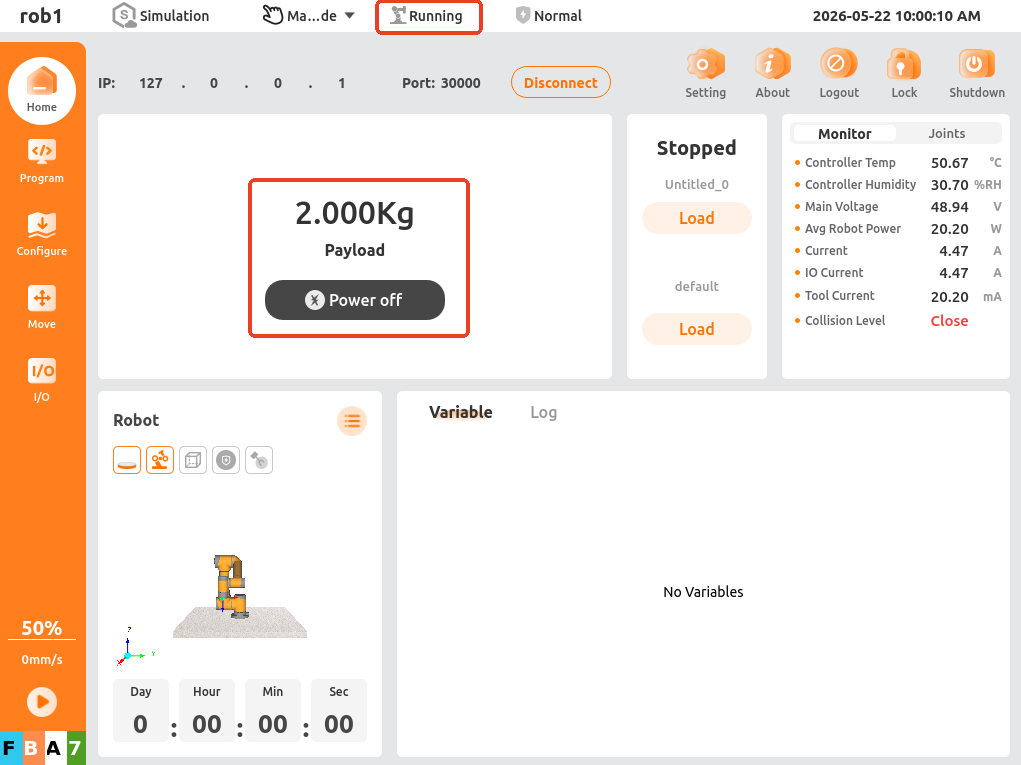
After running the
AppTest.javafile, check the runtime logs. Upon success, you can see the robot arm has been powered on in the virtual machine.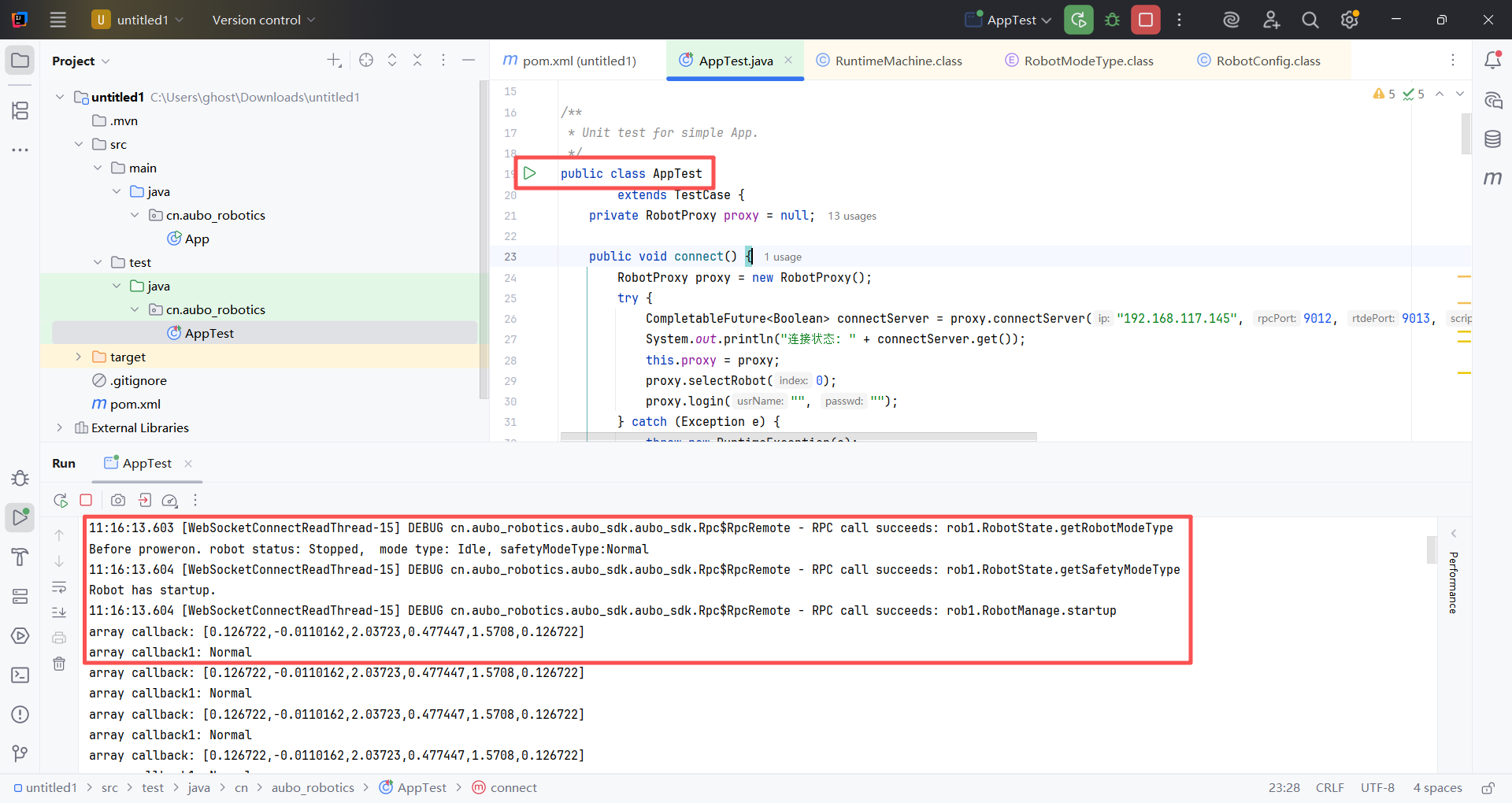
Java SDK Android Project Example
This section describes how to use Android Studio to power on the Aubo robot arm via the Java SDK in the Windows environment.
Open Android Studio and navigate through "New Project > Empty Activity > Next".
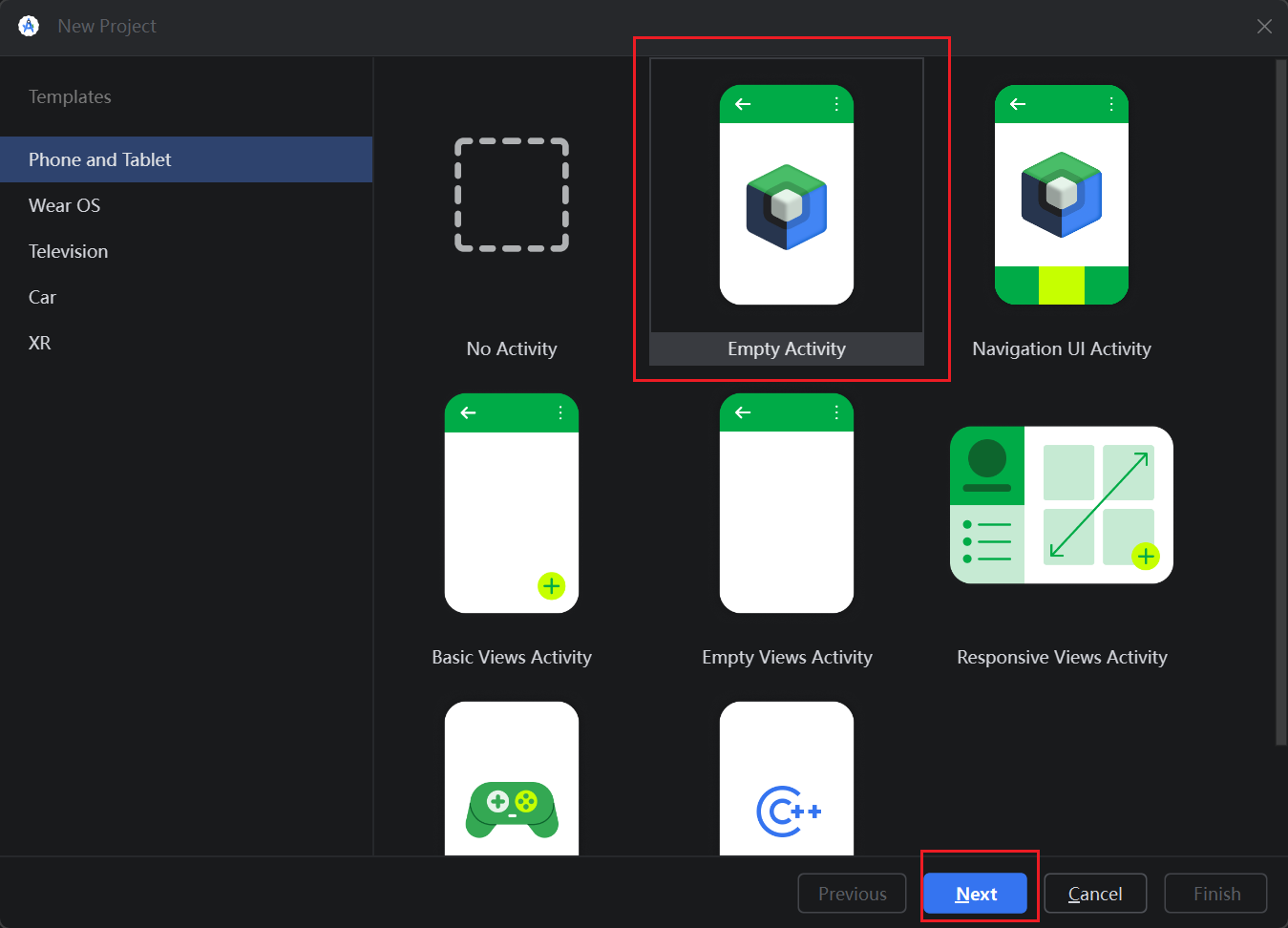
Configure the project name as shown in the image.
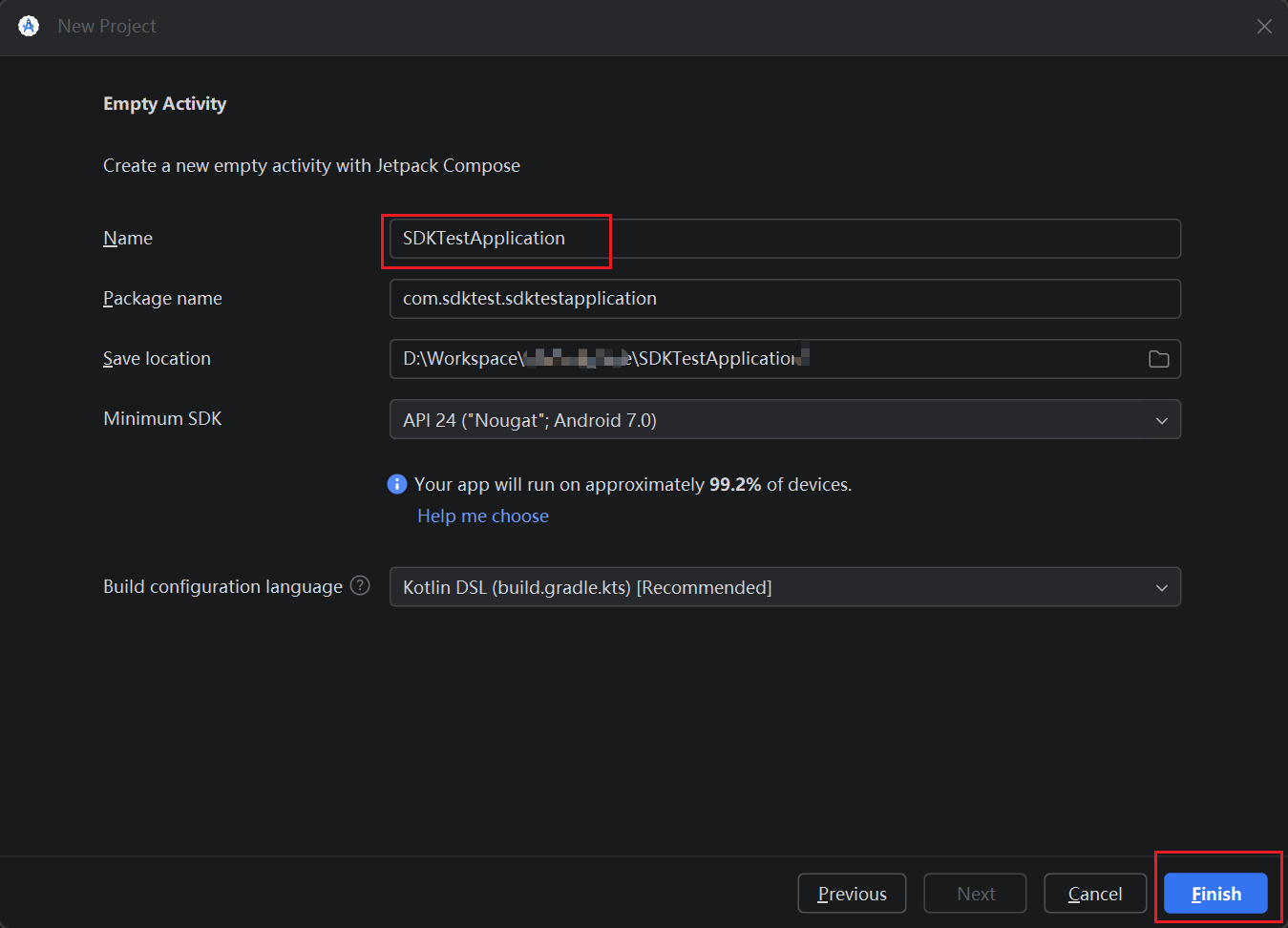
Refer to the Installation Guide to configure the Android project repository.
Write the code in the
MainActivityfile, connect the Android device, and run the Android program.Click to view sample code
package com.sdktest.sdktestapplication

import android.os.Bundle
import android.util.Log
import androidx.appcompat.app.AppCompatActivity
import cn.aubo_robotics.aubo_sdk.robot_proxy.RobotProxy

class MainActivity : AppCompatActivity() {


    override fun onCreate(savedInstanceState: Bundle?) {
        super.onCreate(savedInstanceState)
        setContentView(R.layout.activity_main)
        testSDK()
    }
    private val savedRpcPort = 9012
    private val savedRtdePort = 9013
    private val savedScriptPort = 30003

    //Enter the IP address of the connected device
    private val host = "172.18.14.240"
    private val proxy = RobotProxy()
    fun testSDK() {
        try {
            //1.Connect
            val connectedFuture = proxy.connectServer(
                host,
                savedRpcPort,
                savedRtdePort,
                savedScriptPort
            )

            val connected = connectedFuture.get()
            if (connected) {
                Log.d("AUBO_SDK", "connect success: $host")
            } else {
                Log.e("AUBO_SDK", "connect failed: $host")
            }
            // 2. Login
            proxy.login("username", "password")
            // 3. Select robot
            proxy.selectRobot(0)

        } catch (e: Exception) {
            Log.e("AUBO_SDK", "connect error", e)
        }
    }
}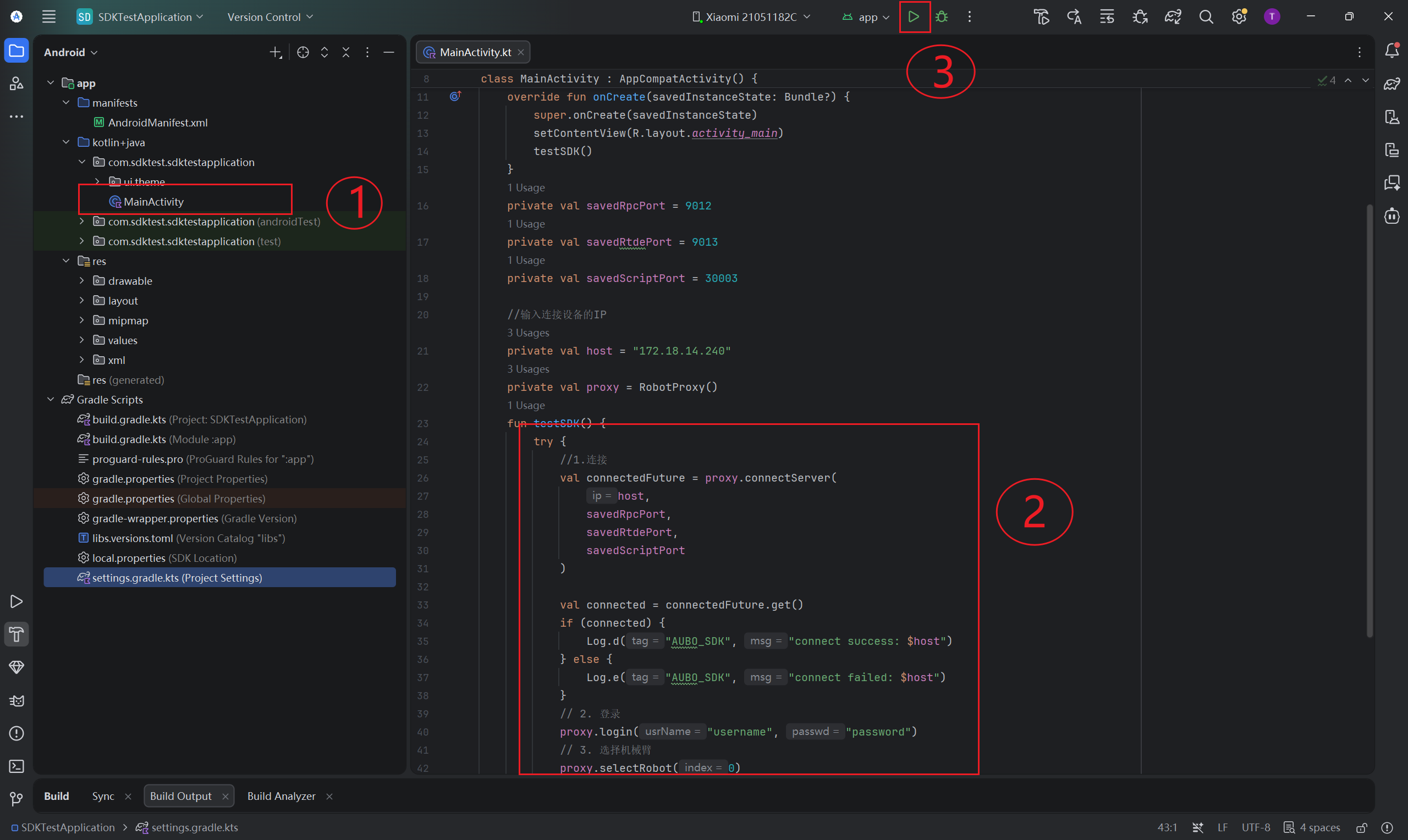
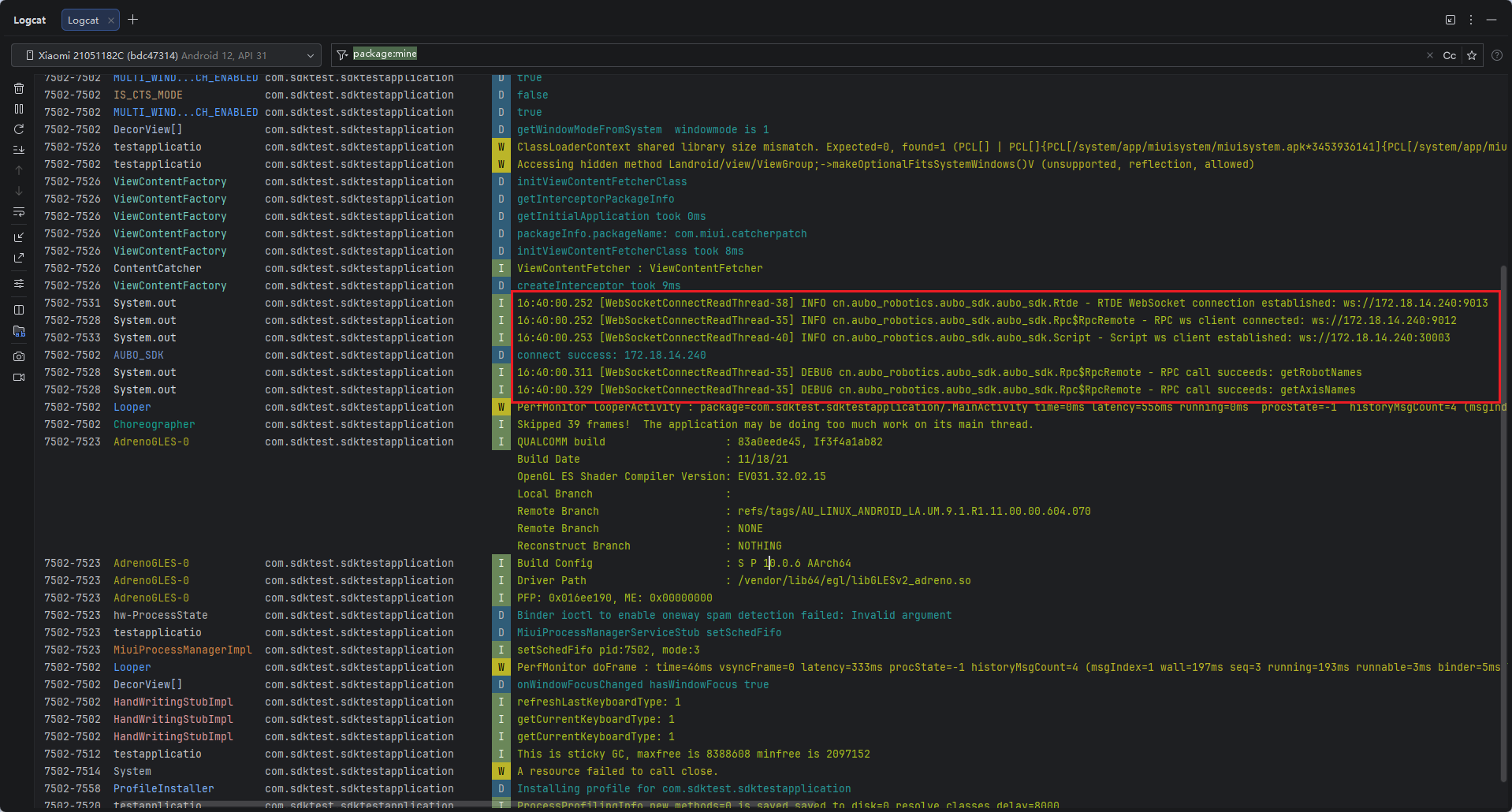
After running the
MainActivityfile, check the runtime logs in Logcat as shown. Upon success, you can see the robot arm has been powered on in the virtual machine.