Loading and Unloading AuboStudio APP Plugins
This document demonstrates how to load, disable, and uninstall plugins in the AuboStudio APP using the plugin package agv-plugin-0.1.0.zip as an example.
Load Plugin
In the AuboStudio APP, click "Home > Set > System" in sequence. Use the [File Transfer] or [USB Drive Import] function to upload the plugin package to the
arcs_ws/extensionsfolder.Note:
For operations related to the [File Transfer] and [USB Drive Import] functions, see Program and File Management.
On the [Set] page, click "System > Plugin" in sequence to enter the [Plugin] page, and click [Add].
Select
agv-plugin-0.1.0.zipin the folder, and click [OK] to decompress and load the plugin.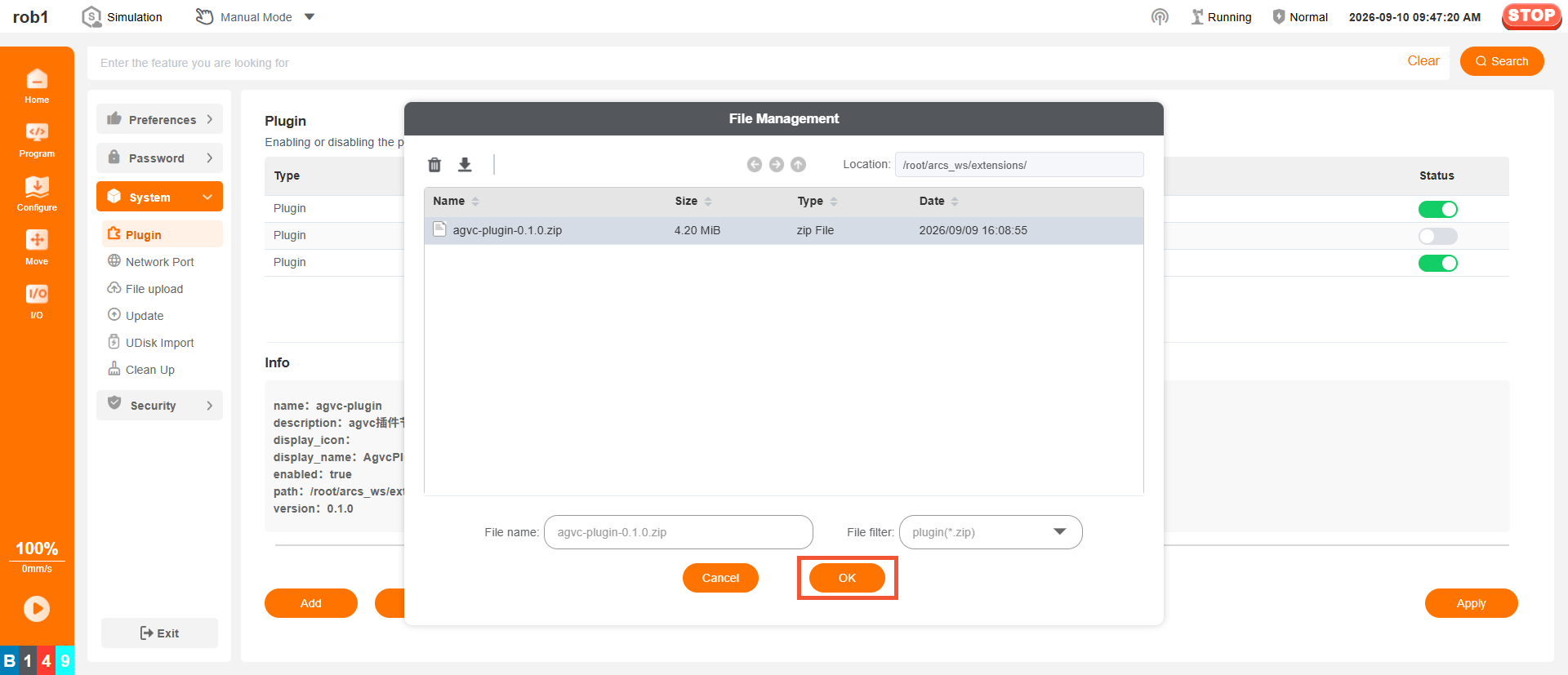
Enable Plugin
After the plugin is loaded, change the plugin's "Status" to
 , and click the [Apply] button.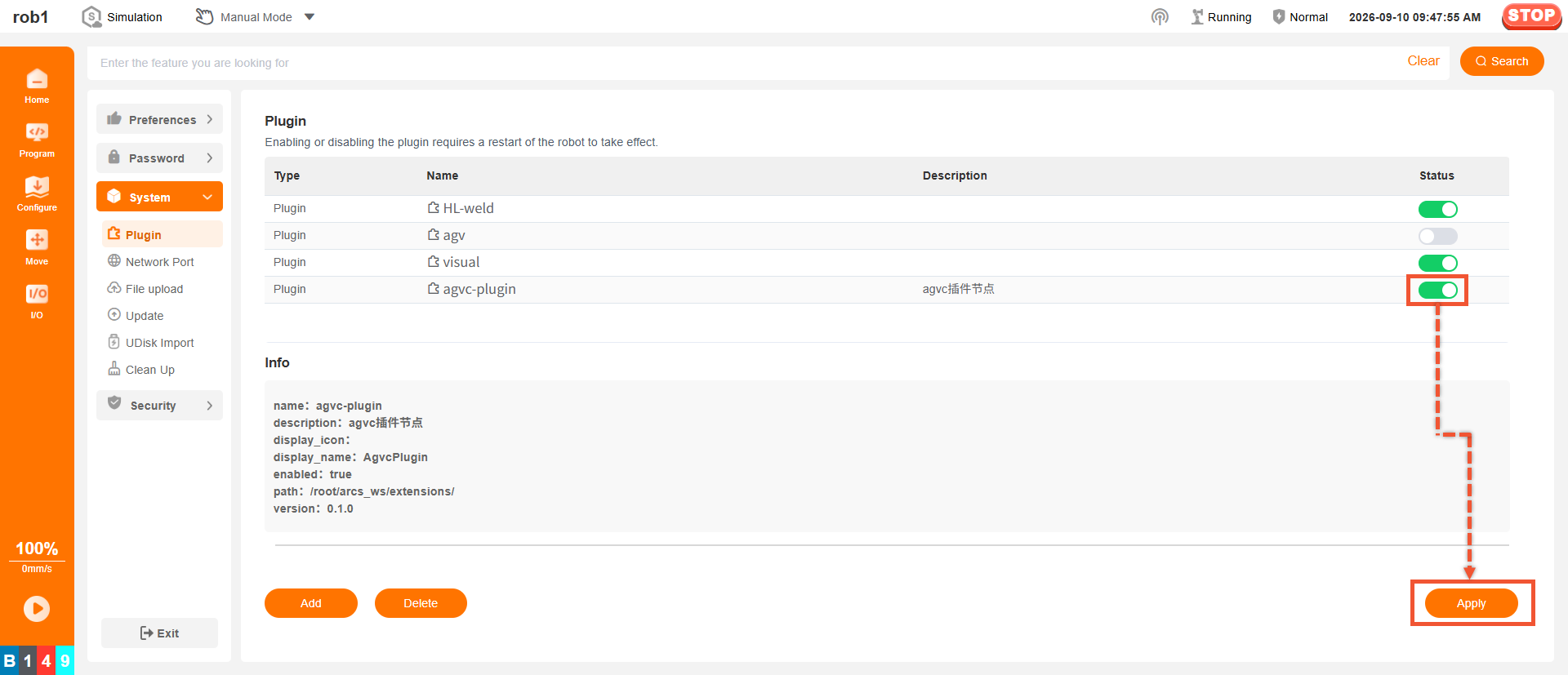
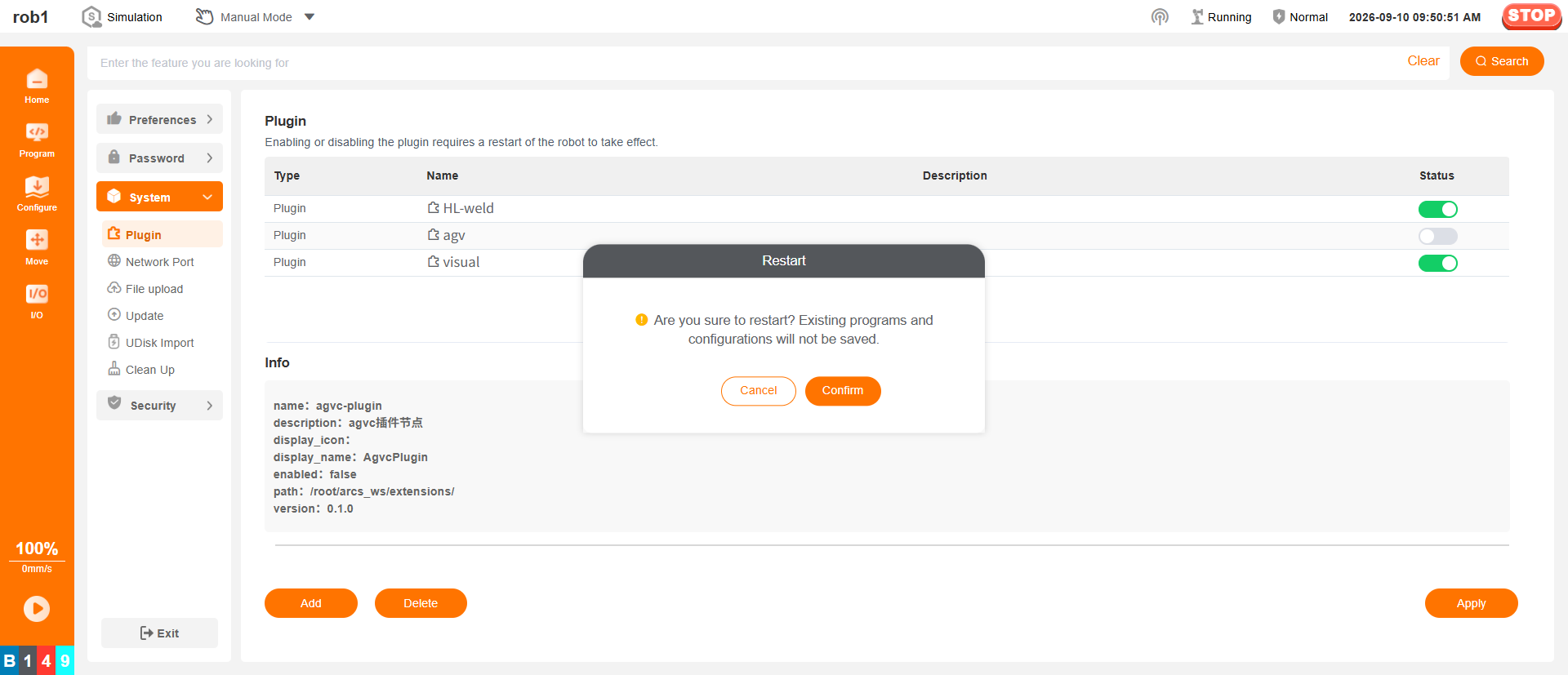
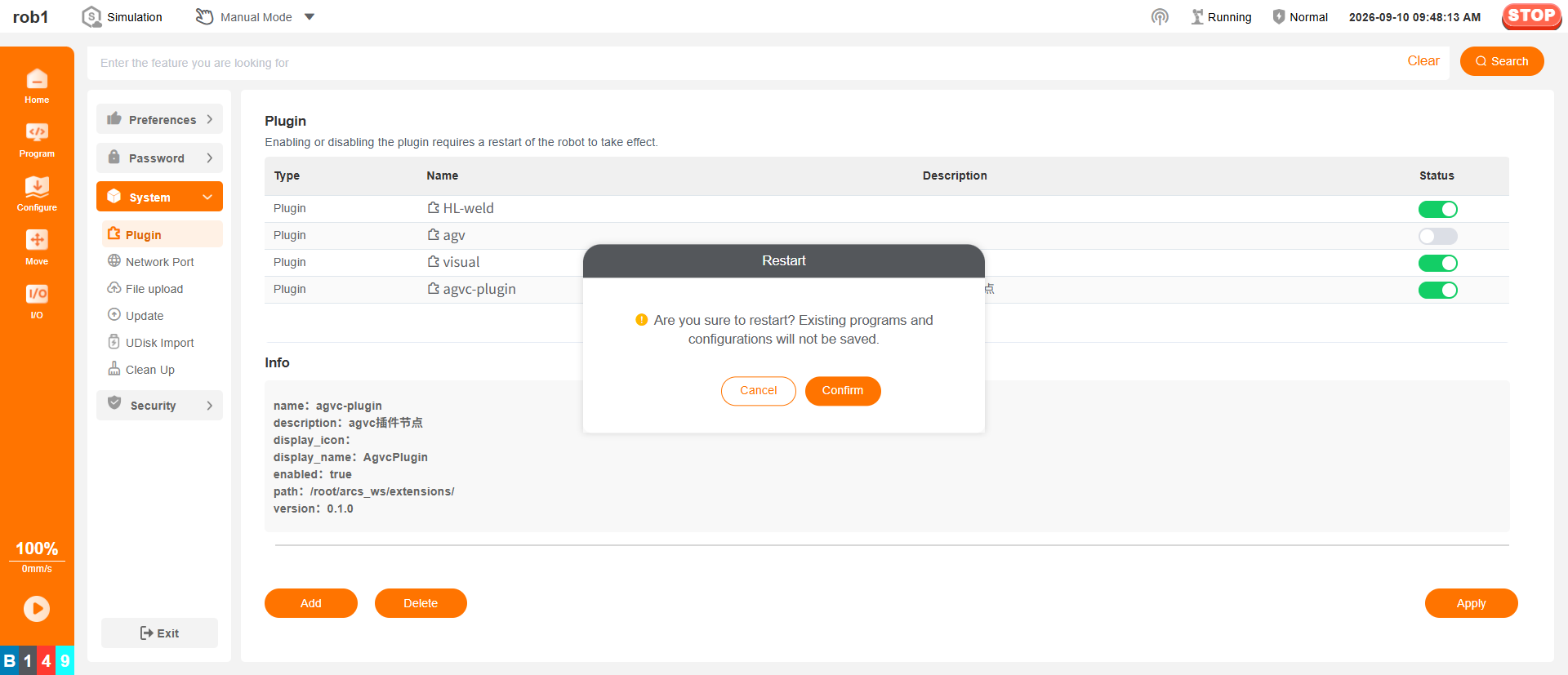
In the pop-up window, confirm that the current project has been saved, and click [Confirm] to restart the AuboStudio APP.
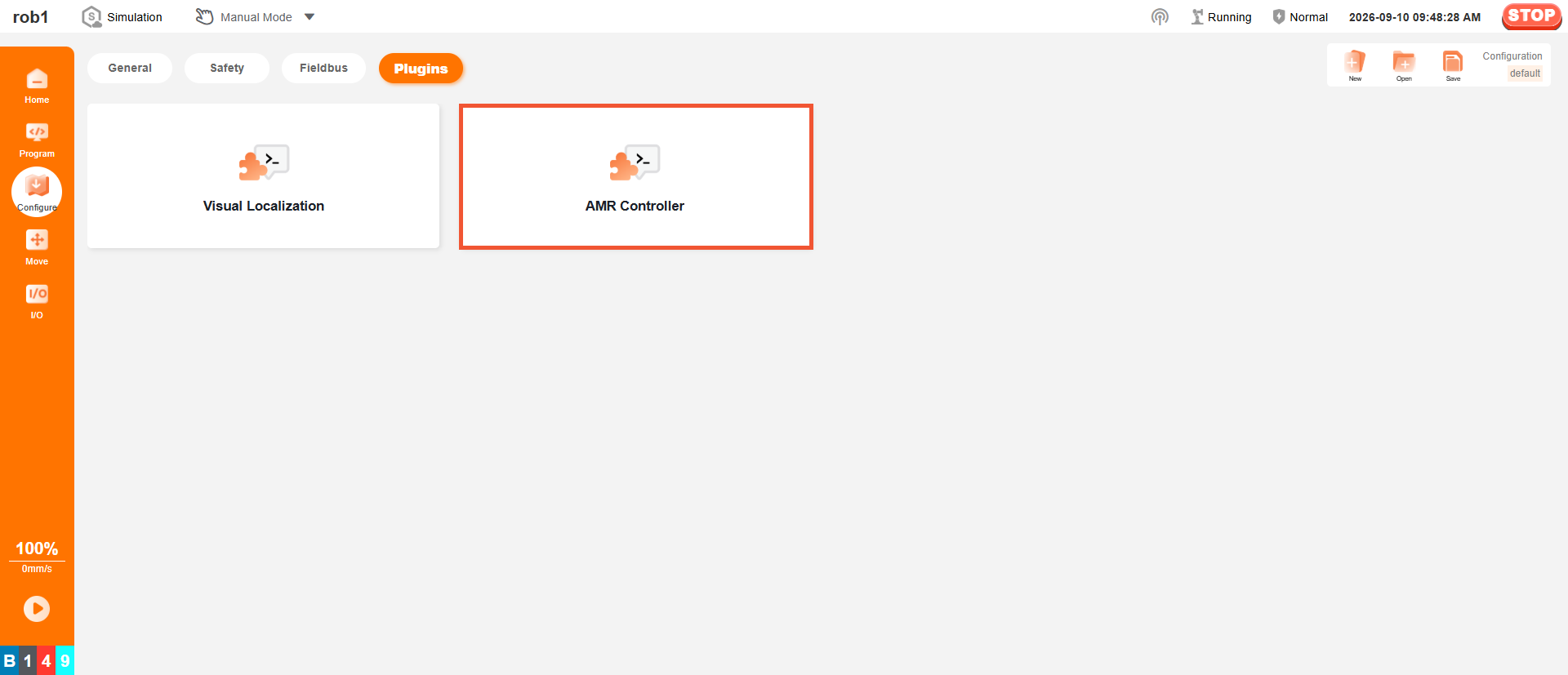
After the AuboStudio APP restarts, click "Configure > Plugin" in sequence to view the plugin's Installation Node.
Disable Plugin
In the AuboStudio APP, click "Home > Set > System > Plugin" in sequence.
Select the plugin to disable, change the plugin's "Status" to
 , click [Apply], and restart the software to disable the plugin.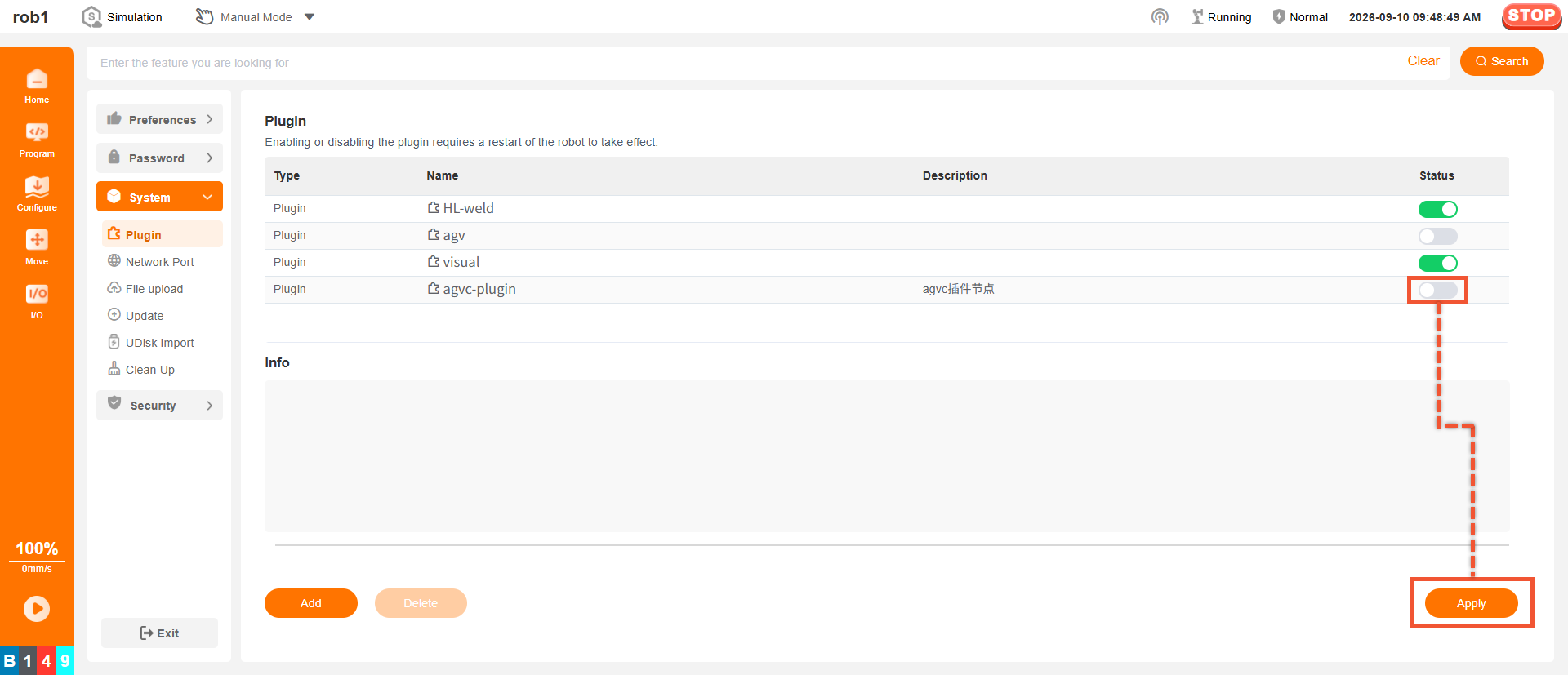
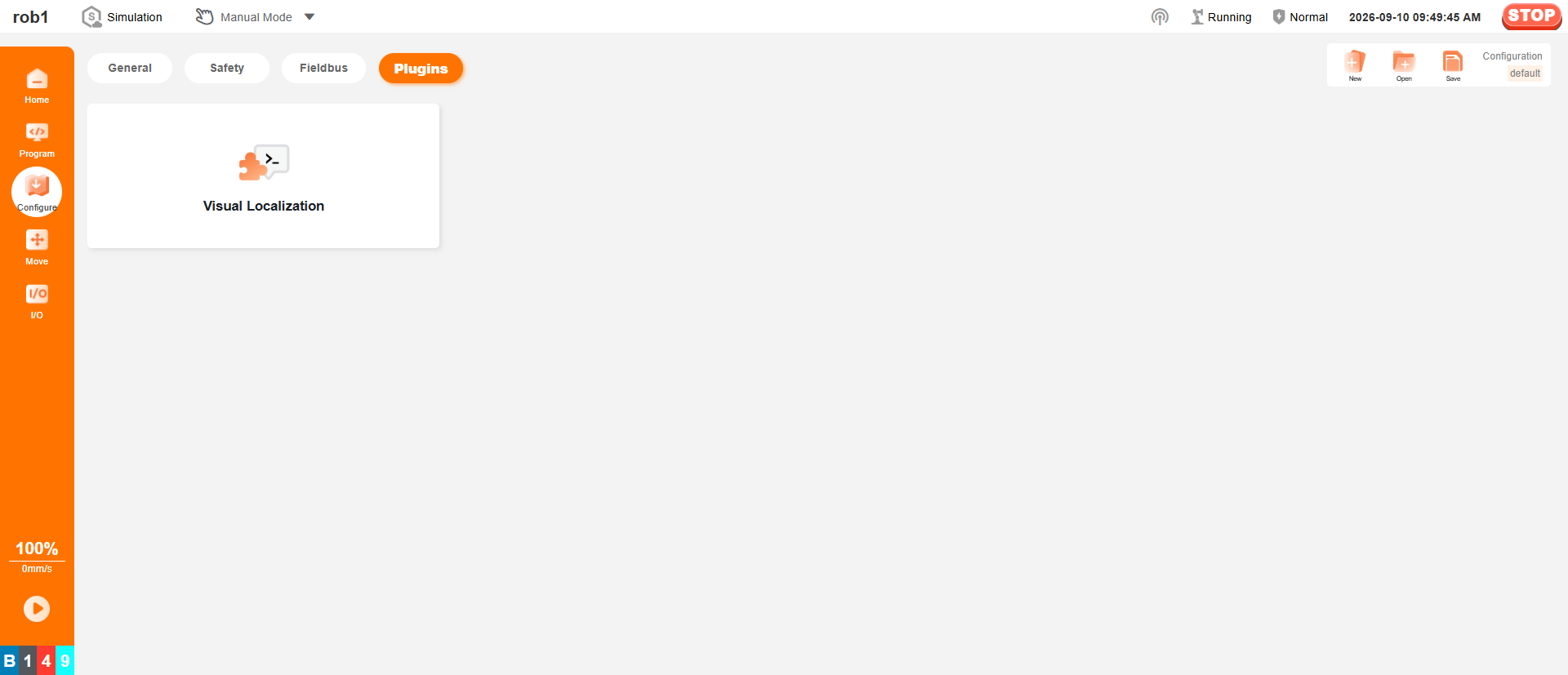
After the plugin is disabled, click "Configure > Plugin" in sequence to view that the plugin is disabled.
Uninstall Plugin
In the AuboStudio APP, click "Home > Set > System > Plugin" in sequence.
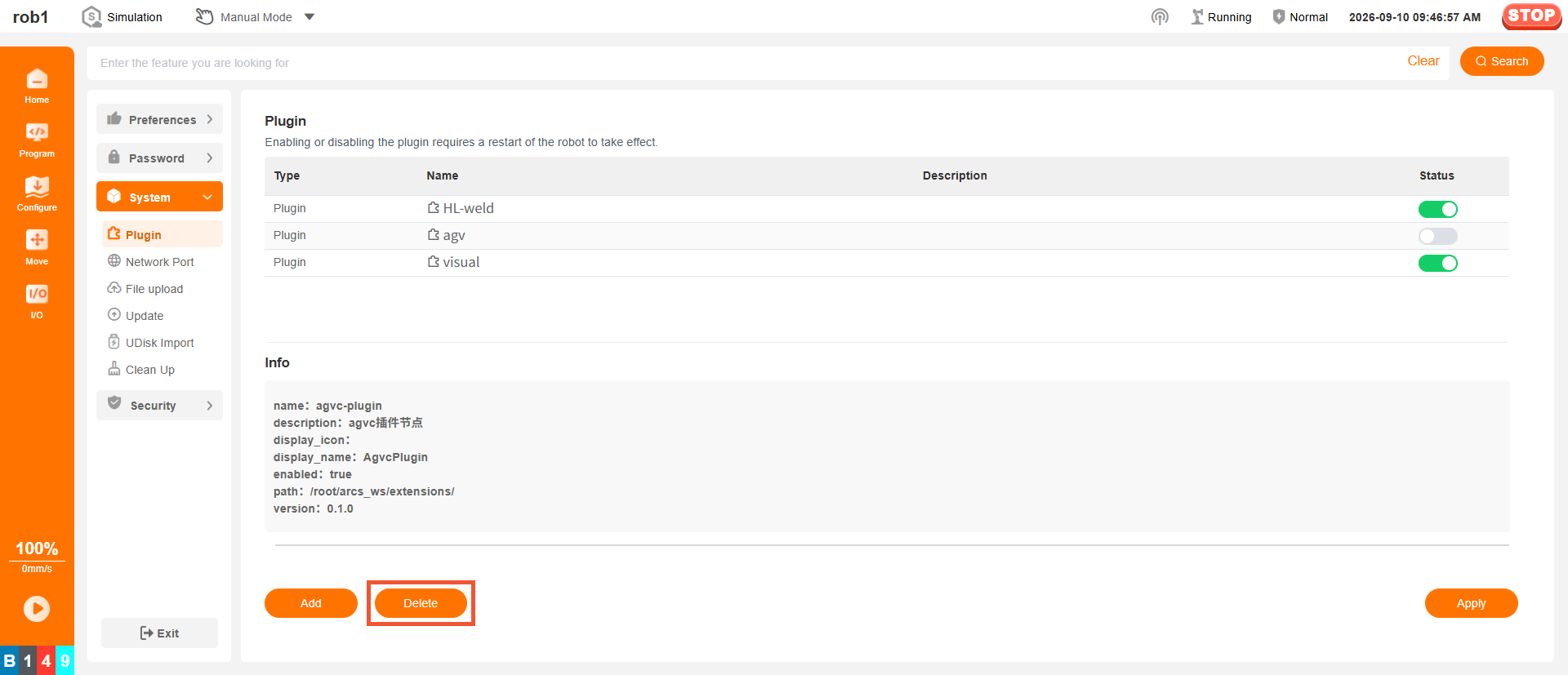
Select the target plugin, click [Delete] at the bottom of the [Plugin] page, confirm the information in the pop-up window, and click [Delete].
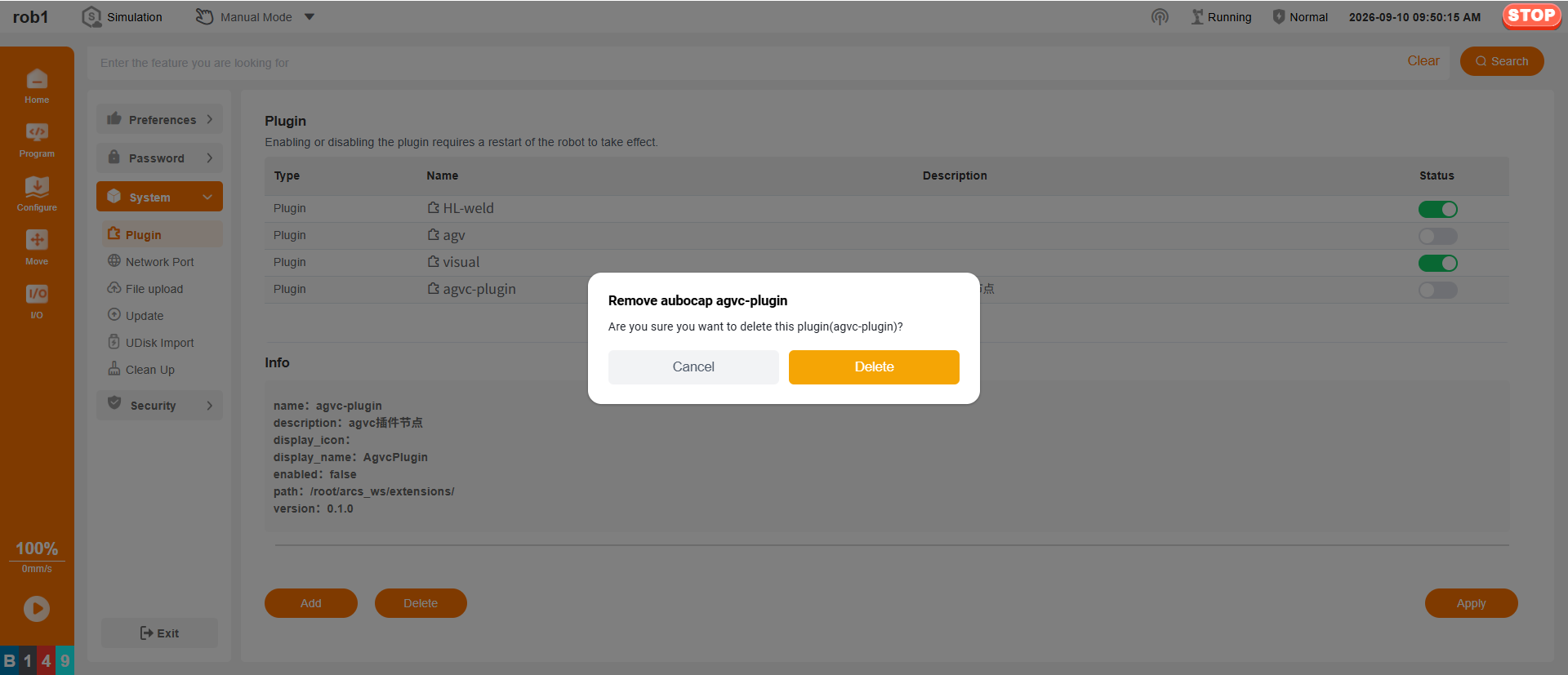
After deleting the plugin, click [Apply]. Confirm the information in the pop-up window and click [Confirm]. The changes take effect after the software restarts.