
System
Plugin
The [Plugin] function provides all interfaces and configurations required for plugin development for the ARCS software of AUBO robots. Developers can develop plugins according to the plugin development guide. Plugins are loaded and run in ARCS software, working with AUBO robots to extend robot functions.
Related documents:
Wi-Fi
On the [Wi-Fi] page, users can set the name and password of the wireless network in the controller. When the controller is connected to a wired network, wireless communication can be turned on or off.
Tip
- If you turn off the wireless hotspot, the controller must be connected to a wired network. Otherwise, you will not be able to connect the robot.
- This function is only supported by some controller models. Please refer to the Hardware User Manual for more details.
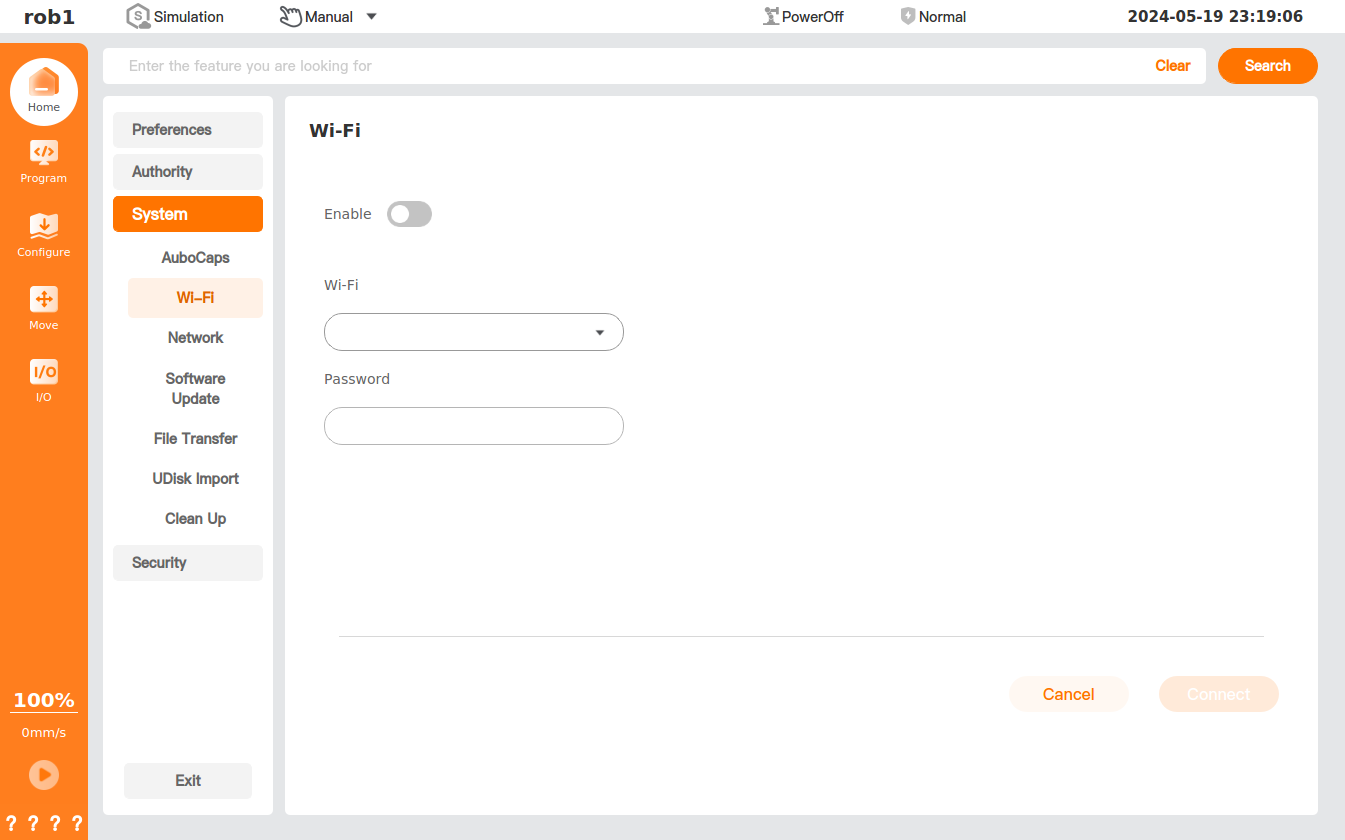
The default name of Wi-Fi is "(AAAA-CCCC-YYYY-)XXXX", and the default password is "12345678". Among them, AAAA is a fixed brand name; CCCC is the controller model; YYYY is the batch production date; and XXXX are the last 4 digits of the controller serial number.
After the successful connection of the software, you can modify the Wi-Fi name and password on the page, then click [Apply] to make the settings take effect. Then the software is disconnected, and just use the new Wi-Fi name and password for reconnection.
LAN interface
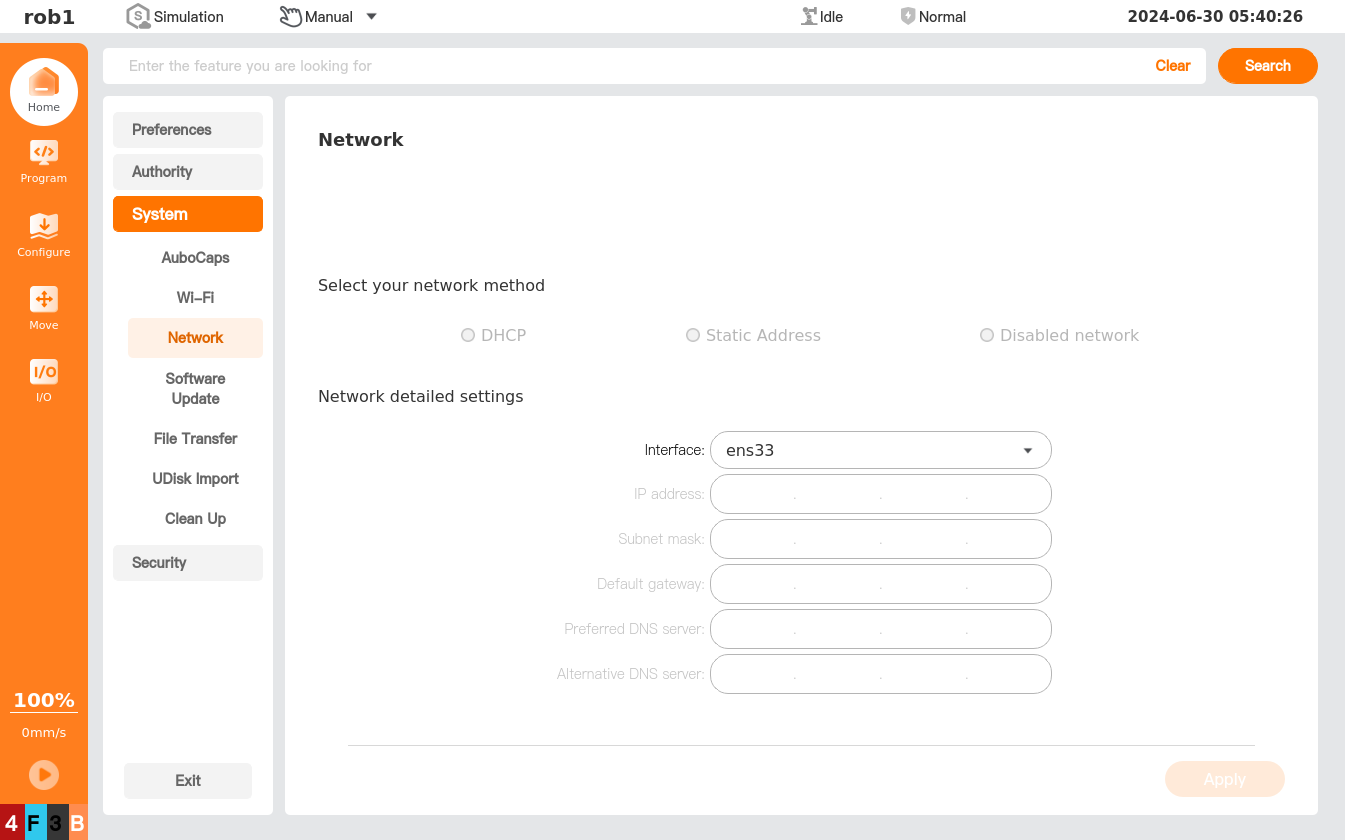
In the [Network] page, you can set up a network controlled by a third-party interface. After setting, the system can be connected to the external network or the LAN.
Tip
- The network IP address of the third-party interface shall be in the same network segment as the IP address of this machine.
- Modification to the network configuration can disconnect the network. Modify the configuration when the robot is not in use, and make sure that the program and the configuration are saved to avoid data loss.
- Please give priority to using DHCP to connect the network. If you choose the static address, please keep the IP address in mind and make sure it is free; otherwise, you may not be able to connect to the controller.
Software update
Please refer to Basic robot operations - Software update.
File transfer
Refer to Program and file management - File transfer.
UDisk import
Refer to Program and file management - Import from USB flash drive.
Clean
In the [Clean Up] page, users can view the disk memory and clean up the system files.
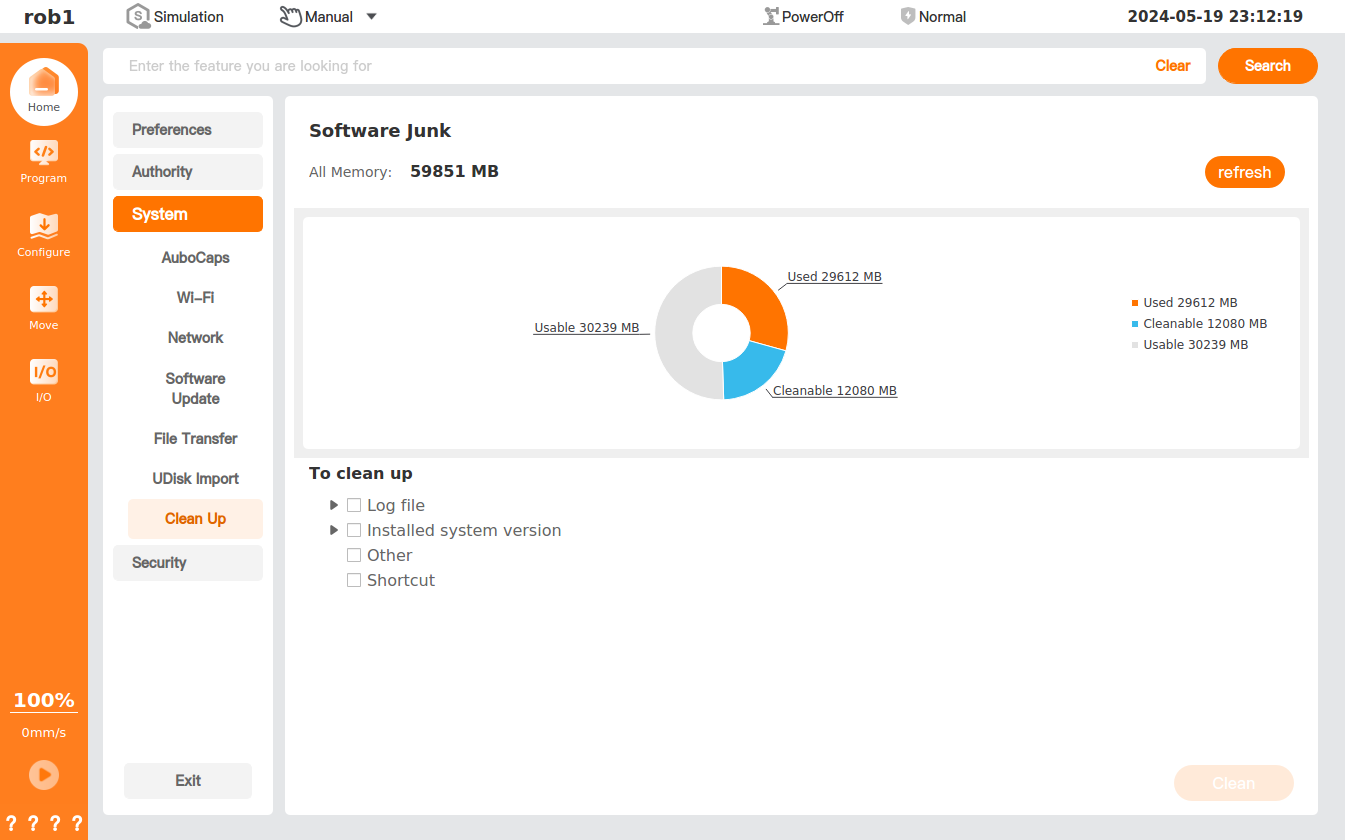
- Refresh: Refresh the [Clean Up] page.
- Clean: Delete the checked files.