
Security
Secure Shell
In [Secure Shell] page, you can enable SSH access. After enabling it, you can remotely log in to the system as a terminal. [Secure Shell] page provides the port forwarding function, that is, the network data of the TCP port is forwarded to a certain port of the specified host, and the data is encrypted and decrypted accordingly while forwarding. . In addition, you can use key based authentication method to achieve password-free login.
Info
- This function can only be unlocked after the admin password is set. For setting method of Admin password, please refer to Classic mode.
- Before adding a key, you need to import the key file into the folder of the system.
- Before enabling SSH, verify that the robot is in the same LAN as the remote device (that is, ping is executed).
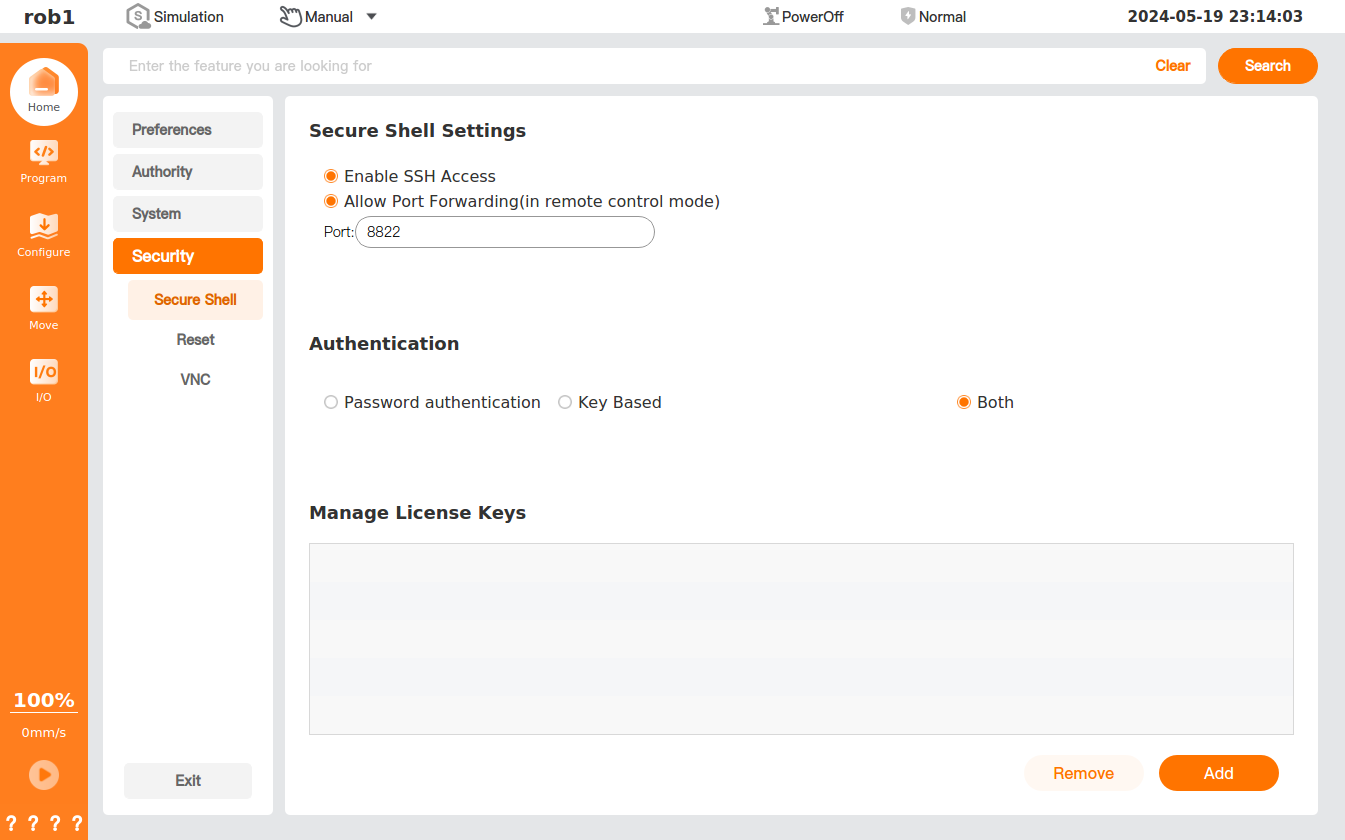
- Enable SSH Access: Enable/disable SSH.
- Allow Port Forwarding (in remote control mode): When this is checked, the port number can be modified in the remote control mode.
- Port: Set the port number.
- Authentication: Select the authentication method for SSH access.
- Add: Add the key.
- Remove: Remove the key.
Reset
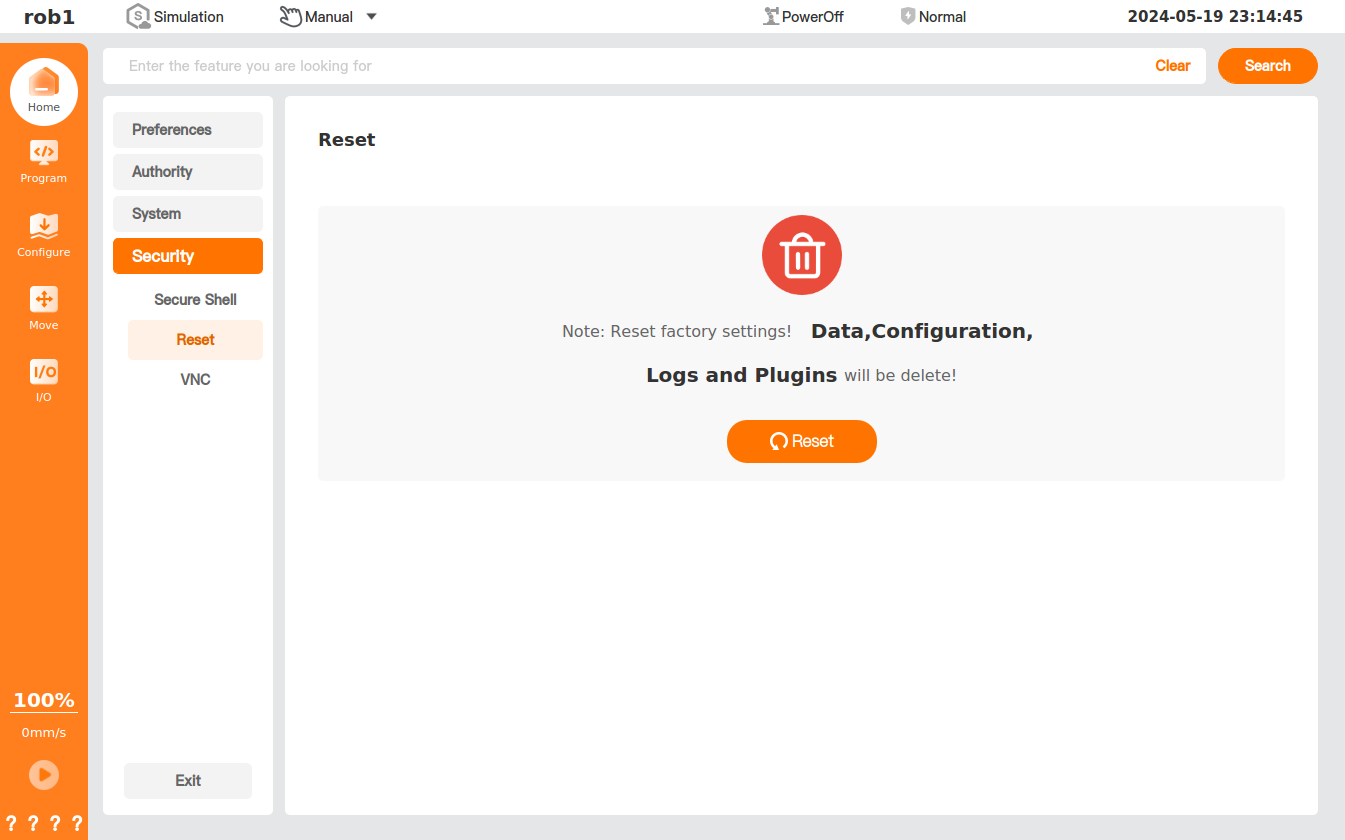
In [Reset] page, you can reset the factory settings of the system.
Info
You need to enter the admin password before resetting the factory settings. For setting method of Admin password, please refer to Classic mode.
VNC
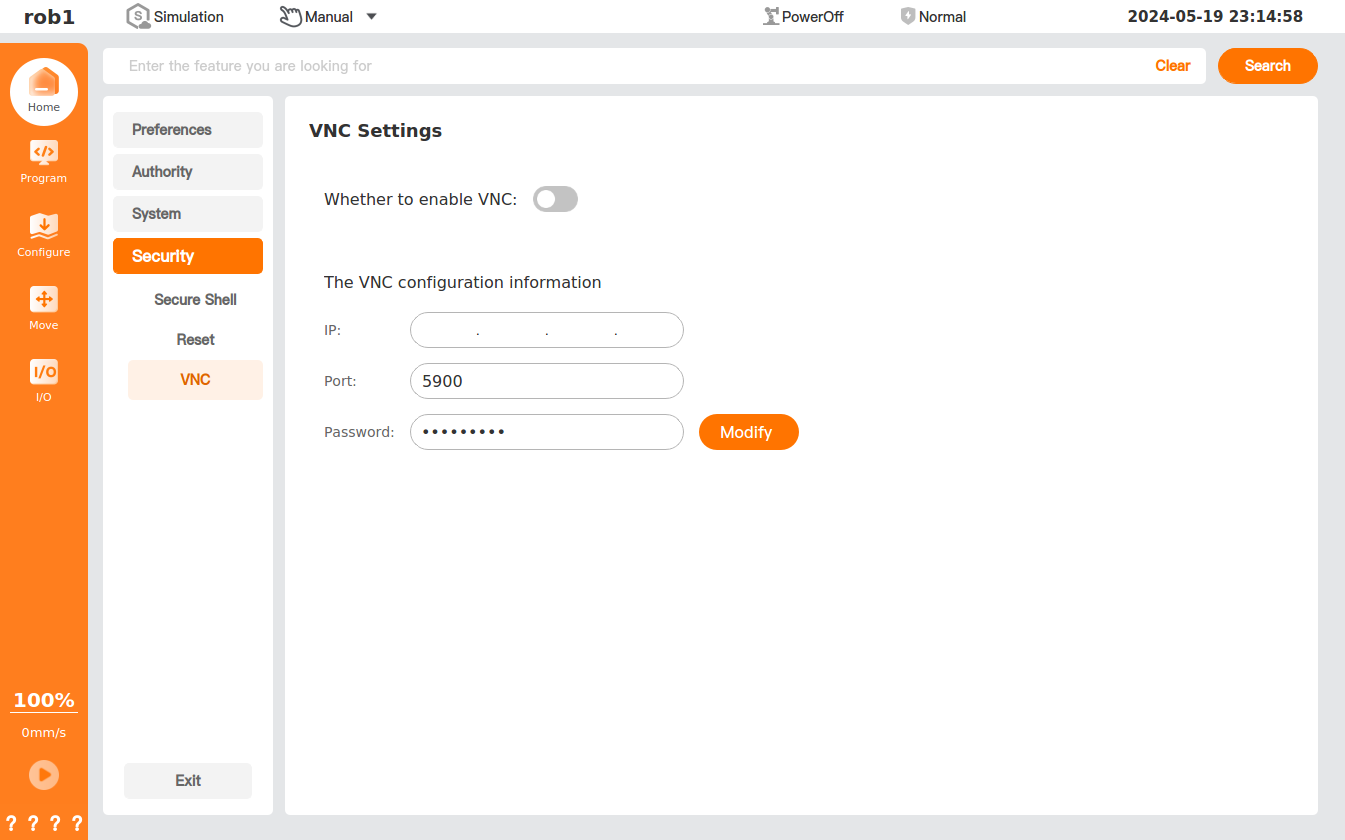
In [VNC] page, you can enable or disable VNC, and set the relevant VNC configuration information.
Activation
When the authorization of a sample machine is about to expire or has expired, the [Activation] function provides authorization management for ARCS firmware. The offline activation solution ensures the legality and compliance of sample machine usage.
Authorization status description:
Permanent authorization: Generally indicates the status of a production machine.
Authorized: The sample machine has been authorized, and the remaining authorization time is displayed.
Expired: The sample machine authorization has expired. Some functions are disabled, and the sample machine can be activated by following the steps below.
Activation Method
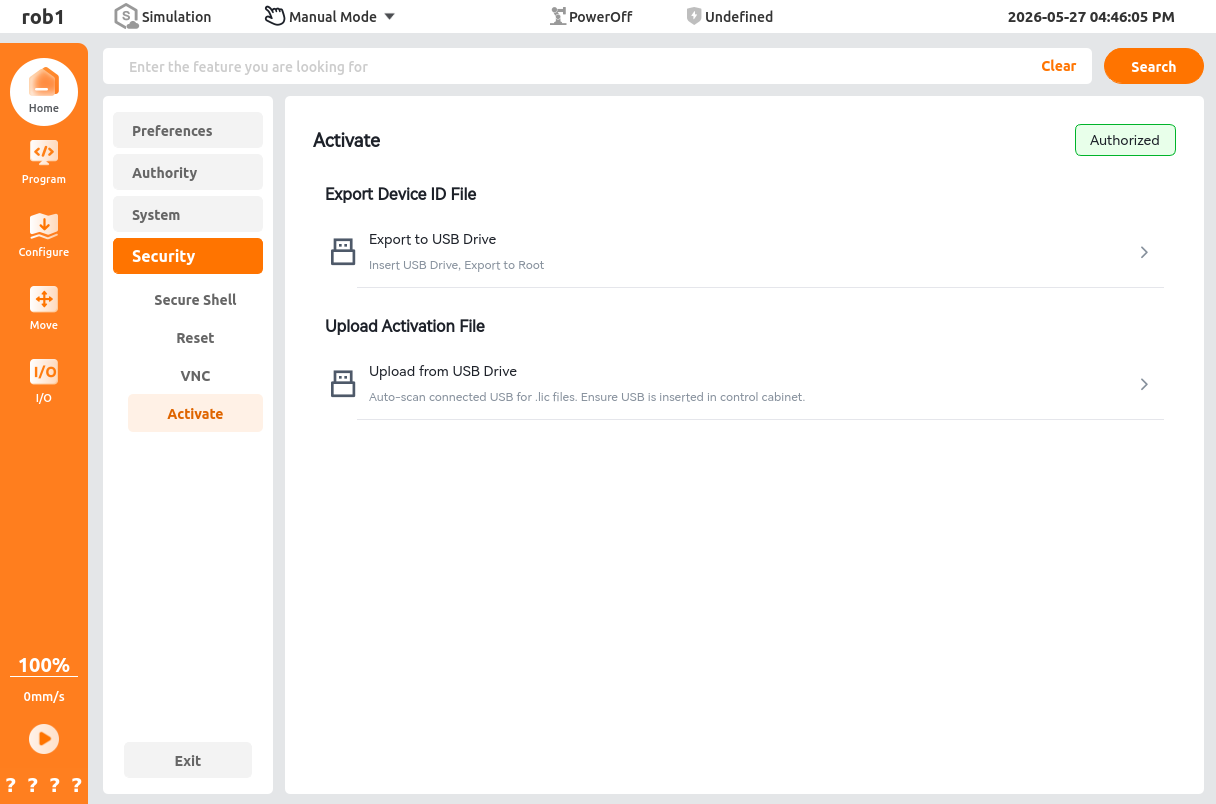
Export Device ID File
Before activating a sample machine, export the device ID
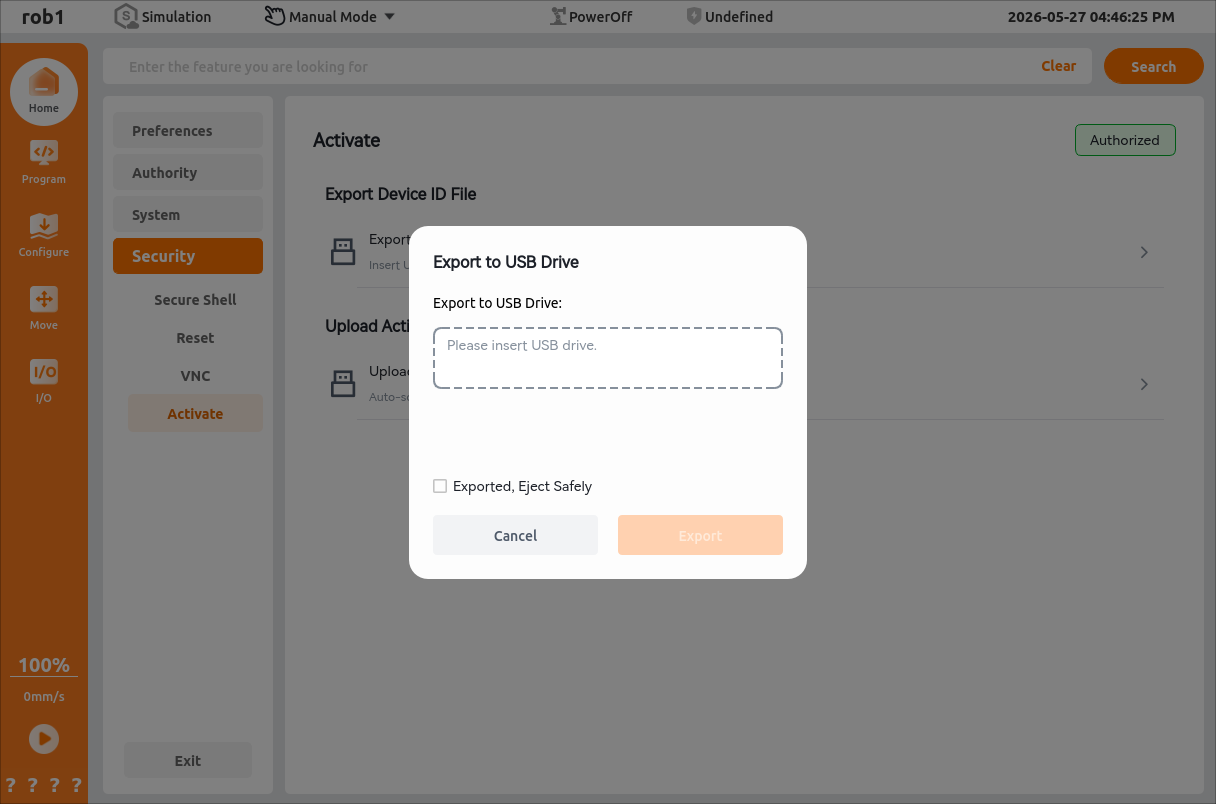
.didfile using one of the following methods and send it to the AUBO technical team to generate a dedicated activation license.licfile.[Export to USB Drive]
Insert a USB drive into the control cabinet panel.
Click [Export to USB Drive].
Select the corresponding USB drive or the currently mounted USB device, and click [Export].
Note:
You can select [Export completed. Safely eject USB drive.]. After the export is complete, the system automatically ejects the USB drive.
After the export is complete, a pop-up message [Export successful] is displayed.
[Download to Pad]
Click [Download to Pad] to download the device ID file to the Download folder in the tablet's internal storage.
Note:
This step is available only for wireless teach pendants.
Upload Activation File
After the AUBO technical team generates the dedicated activation license
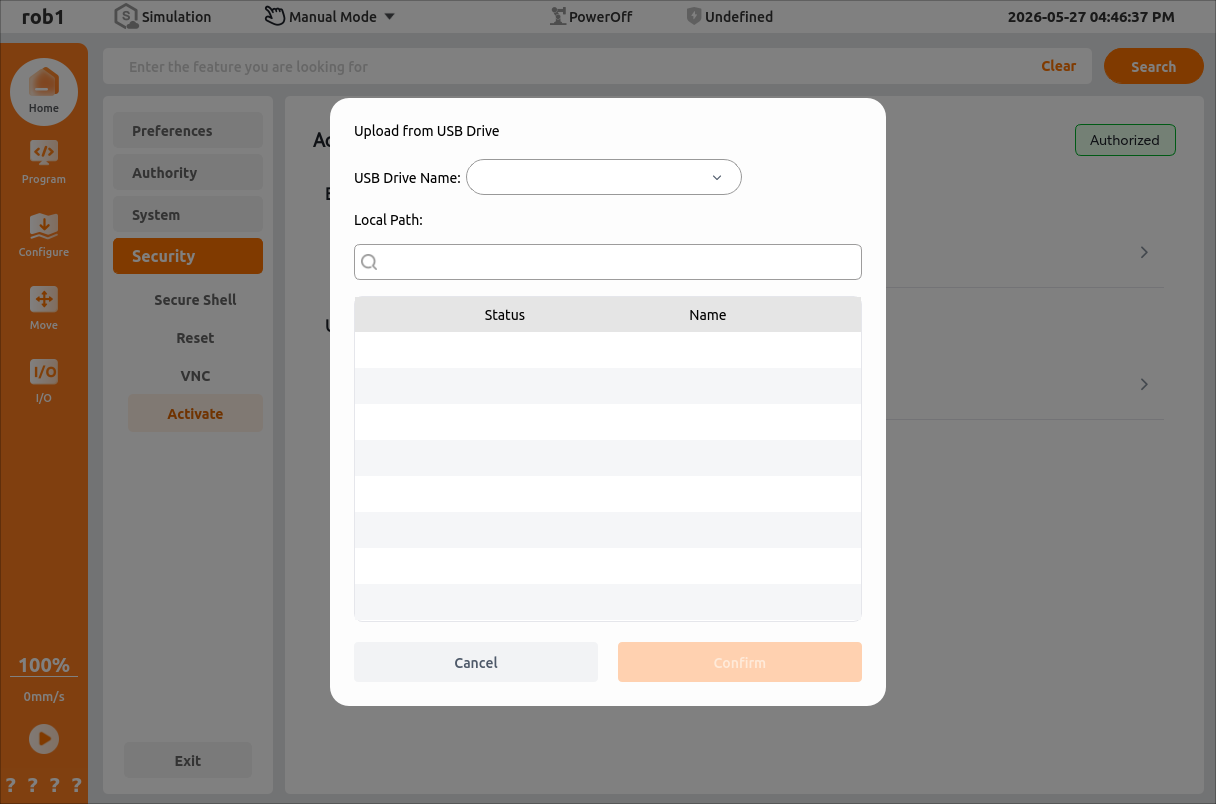
.licfile using the device ID file, upload the file to activate the sample machine.[Upload from USB Drive]
Insert the USB drive that contains the authorization file, and select the USB device from the drop-down list.
The system automatically searches the connected drive for
.licauthorization files. The.licfile must be copied to the root directory of the USB drive in advance.Note:
You can enter file keywords in the search box for quick search.
Select the target file and click [Confirm] to complete sample machine activation.
[Upload from Tablet Storage]
After saving the
.licactivation file to the tablet, click [Upload from Tablet Storage], select the target file, and click [Confirm] to complete sample machine activation.Note:
This step is available only for wireless teach pendants.
After the file is imported, the system immediately verifies it. If the verification succeeds, the authorization status and remaining authorization time are updated on the page in real time. If different valid authorization files are imported repeatedly, the system recalculates and updates the remaining time according to the latest logic.
Sample Machine Not Activated
To ensure continuous normal operation of the device, contact AUBO technical personnel for activation before the trial authorization expires. When the authorization is about to expire or has expired, the following situations occur:
When the remaining authorization period is ≤ 7 days:
A pop-up indicating the remaining time is displayed automatically at the first startup each day.
A persistent watermark indicating the remaining time appears in the lower-right corner of the home page.
You can select [Go to Activate] or [Close Reminder]. If [Do not remind me again today] is selected in the settings, the reminder will not appear again on that day.
When the remaining authorization period is ≤ 1 day:
The countdown unit displayed by the system automatically changes to hours.
When you click [Run Program], the system displays a pop-up indicating the remaining time. You can select [Confirm Close] to continue running, or click [Go to Activate].
After the authorization expires:
The Security and Authorization page clearly displays the Expired status.
Power-on operations are prohibited.
Installation or switching of firmware versions is prohibited.
When you click power-on or try to install a version, the system forcibly blocks the operation with a pop-up. You can only select [Go to Activate] or [Cancel].